
Seeing an iPad freeze on the Apple logo is a bit of a nightmare. One minute it’s updating, the next it’s a pricey coaster with a glowing fruit on screen.
If you’re dealing with an iPad stuck Apple logo issue, the good news is that it’s usually fixable. In most cases, we’re looking at a failed update, a crash, or a restore that didn’t finish properly, not a completely dead iPad. The key is to start with the safe fixes, then stop before random button-mashing makes it worse.
What usually causes an iPad stuck Apple logo problem
At the bench, we see this most often after an update gets interrupted. Low battery, weak Wi-Fi, full storage, or a shutdown at the wrong moment can all leave iPads hanging during boot. Apple’s own UK support guide for frozen or unresponsive iPads still lists the same pattern in 2026, and that matches what we see in repairs.
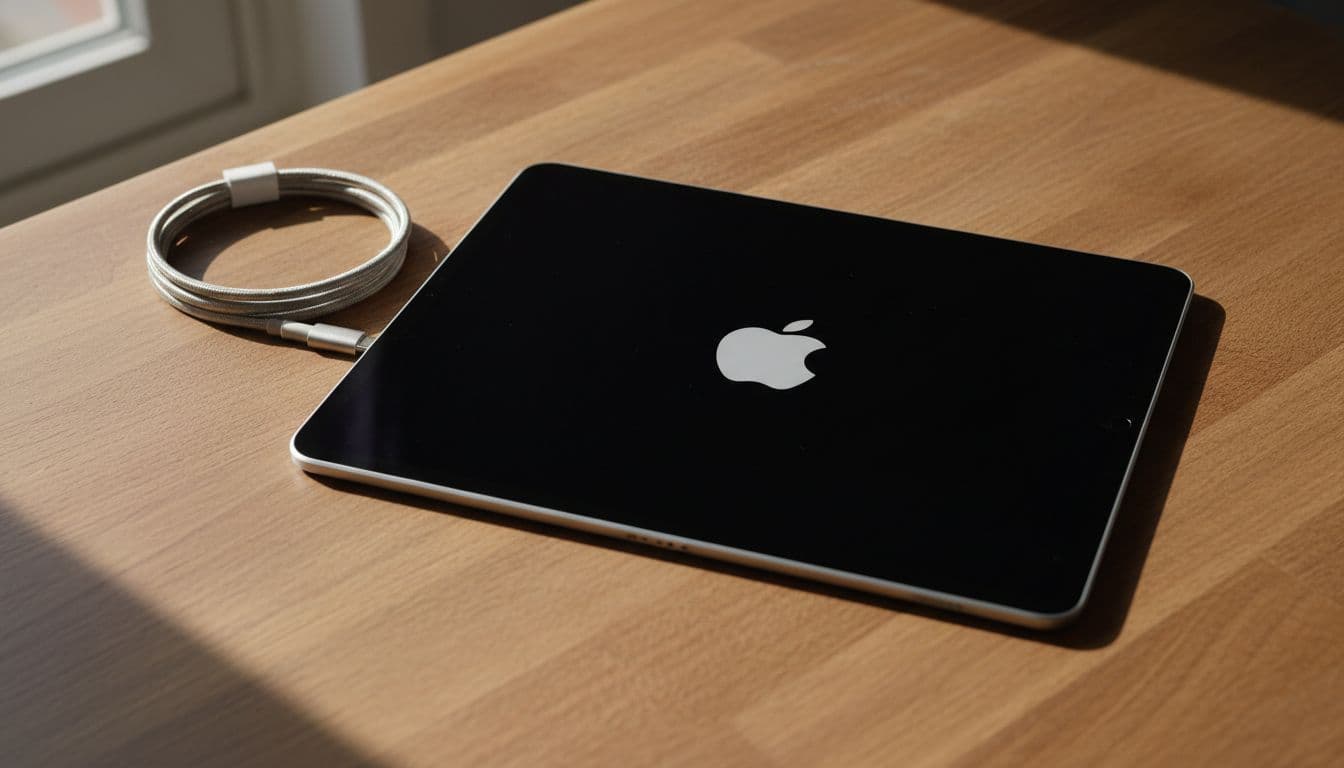
It can also happen during setup on a new iPad, especially when apps and data are transferring from an older device. Less often, the Apple logo loop points to hardware, such as a failing battery, storage fault, or damage after a drop or liquid contact.
Here’s the quick version.
| What you see | Usual cause | Best next move |
|---|---|---|
| Apple logo, no progress bar | Boot glitch or low battery | Charge, then force restart |
| Apple logo with frozen bar | Interrupted update or restore | Wait, then use recovery update |
| Stuck during device transfer | Setup or migration issue | Follow Apple’s transfer fix |
| Started after a drop or spill | Possible hardware fault | Book diagnostics |
That last row matters most. If the iPad was dropped yesterday and today it won’t go past the logo, we treat it differently. Software fixes are still worth a try, but we keep hardware in mind from the start.
The safest fixes to try at home first
We always tell customers to go in order. Start simple, because the first fix is often the one that works.
- Charge it properly for at least 30 minutes.
A flat or unstable battery can cause boot loops. Use a good cable and charger, then leave it alone for a bit. - Force restart the iPad.
On models without a Home button, press volume up, then volume down, then hold the top button until it restarts. On older Home button models, hold Home and the top button together. - Try recovery mode and choose Update.
Connect the iPad to a Mac or Windows PC. Use Finder on a Mac, or Apple Devices or iTunes on Windows. When recovery mode appears, choose Update first. That reinstalls iPadOS without trying to wipe your data. - Use Restore only if you’ve got a backup.
Restore can sort stubborn software faults, but it erases the device. If there’s no backup, think before pressing the button.
If the progress bar is still moving, leave it alone. Interrupting an update halfway is one of the easiest ways to turn a small glitch into a bigger one.
If the fault appeared while setting up a new iPad from an older one, Apple has a separate support note for transfer-related Apple logo issues. That catches a problem plenty of people miss.
We’d also be careful with flashy “no data loss” repair tools online. Some work, some don’t, and some are a faff. If your data matters, the safest route is still proper recovery steps or a diagnostic before things get messy.
When we stop troubleshooting and book a repair
If the iPad won’t show in Finder or iTunes, gets hot, restarts over and over, or the fault started after impact, we usually stop home fixes there. That’s when a repair bench tells the real story.
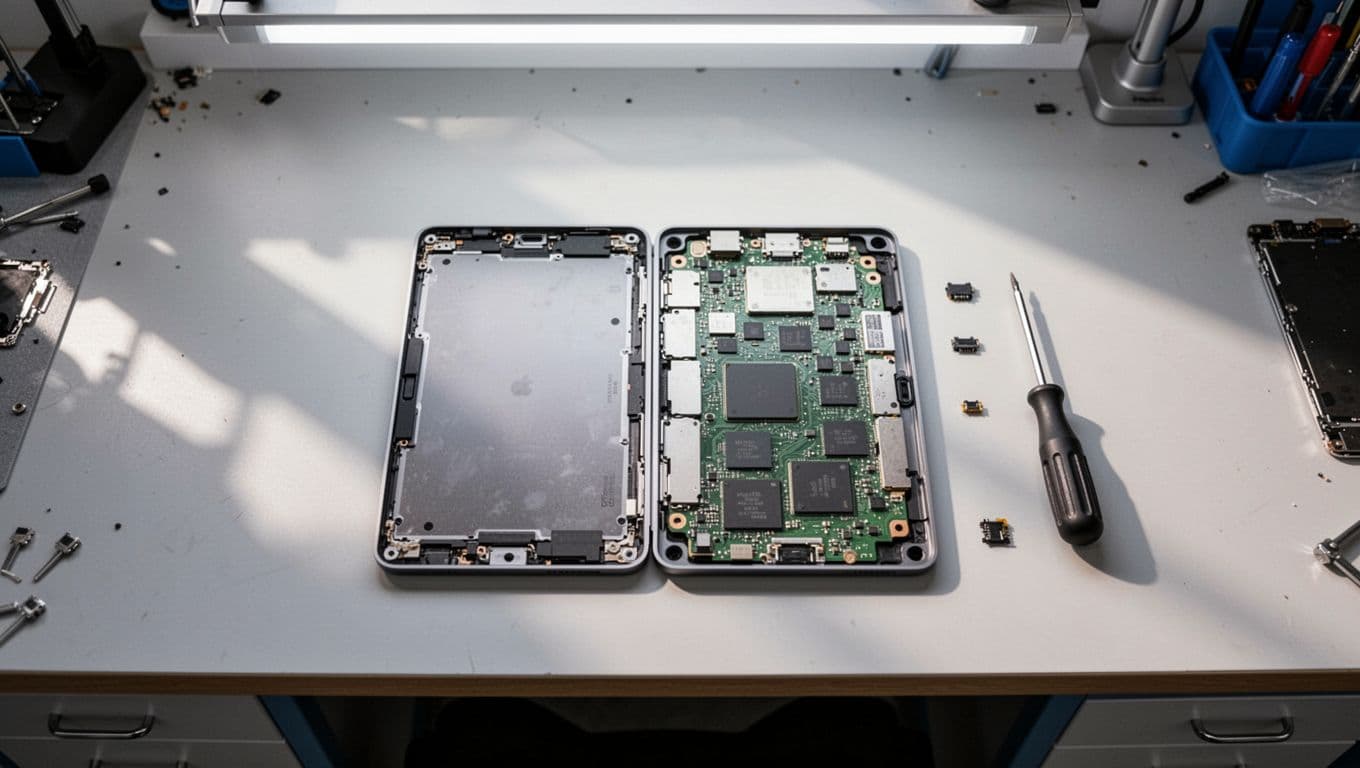
Last month, we had an iPad from Essex that got stuck on the logo after an overnight update. A force restart did nothing, and recovery mode failed halfway through. On test, the battery voltage was dropping under load, so the iPad couldn’t finish booting. We replaced the battery, reinstalled the software, ran full checks, and it was sorted.
If you’re after phone repair Essex support as well as tablet help, our phone repairs Essex page explains the Harlow drop-in and mail-in options. If you’re further away, our postal phone repair UK service is the easiest route for nationwide bookings. And if the logo issue follows impact damage, our guide to iPad screen repair cost UK gives realistic 2026 pricing before you book.
We don’t only see iPads, either. Our workshop also handles iPhone screen repair UK jobs, iPhone battery replacement UK requests, cracked iPhone screen repair, Samsung phone repair UK, and general mobile phone repair UK work every week.
Quick questions we hear in the workshop
Will a force restart delete my data?
No. A force restart is safe and won’t wipe the iPad.
Will recovery mode always save my files?
Not always. Choosing Update gives you the best chance. Restore wipes the device.
Is it worth repairing an older iPad?
Usually, yes, if the fault is limited to software, battery, or a straightforward part. If the board has deeper damage, we’ll say so plainly.
Most iPad stuck Apple logo faults still come down to software, bad timing, or power issues, so there’s no need to panic. Work through the safe steps first, then get help if the iPad keeps looping or won’t talk to a computer.
If yours is still stuck, we can check it properly, whether you’re local or posting it in. Book online, pack the iPad securely with your order number, include a passcode if you want full testing, and we’ll get it sorted as quickly as we can.
James Waterston, Device Repair Specialist at Repair My Crack