
Seeing a cable and computer icon on your iPhone can feel like the phone has given up on you. In most cases, it hasn’t. An iPhone stuck in recovery mode is often a software hiccup, not a dead handset.
We see this after failed updates, sudden shutdowns, flat batteries, and the odd cable issue. The good news is that a lot of these cases can be sorted at home before you book a repair.
Can we fix an iPhone stuck in recovery mode ourselves?
Yes, often we can.
Recovery mode is like the phone pulling its own handbrake. It appears when iOS can’t start properly, so the device waits for help from a computer. For a plain-English overview of what that screen means, AppleMagazine’s recovery mode explainer gives useful background.
The main rule is simple:
Choose Update first in Finder or iTunes. Restore erases the phone.
If your iPhone entered recovery mode after an iOS update, a crash, or a low-battery shutdown, there’s a fair chance it will boot again without parts being replaced.
Safe iPhone stuck recovery mode fixes to try first
Start with a force restart
This is the quickest fix, and it works more often than people expect.
- iPhone 8 and newer: Press Volume Up, press Volume Down, then hold the Side button until the Apple logo appears.
- iPhone 7 and 7 Plus: Hold Volume Down and the Side button together.
- iPhone 6s and older: Hold Home and Power together.
Keep holding until the Apple logo shows, not just until the screen goes black.

If the phone returns to the recovery screen, move on to a computer-based fix.
Use Finder or iTunes the right way
On a newer Mac, use Finder. On Windows or an older Mac, use iTunes.
Connect the iPhone with a reliable cable, then wait for the computer to detect it. You should see options to Update or Restore. Always try Update first, because it attempts to reinstall iOS without wiping your data.
A few small things matter here:
- Use a proper cable, not a tired one from the kitchen drawer.
- Keep the phone connected until the process finishes.
- If the download takes a while and the phone exits recovery mode, repeat the step and try again.
We’ve also seen newer models behave much the same as older ones, which matches this troubleshooting guide from PhoneRepair.co.uk. The pattern is familiar, software first, then hardware if the loop keeps returning.
When recovery mode points to a hardware fault
Sometimes recovery mode is only half the story.
If the phone won’t stay powered during an update, can’t be detected properly, or keeps dropping the connection, there may be a deeper fault. In the workshop, we often find one of these behind the scenes:
- A weak battery that can’t handle startup properly
- A dirty or damaged charging port
- Impact damage after a drop
- Liquid exposure
- A fault on the logic board
That’s why we don’t tell people to keep restoring over and over. It’s a bit like trying to repaint a wall with damp behind it. The symptom stays, because the cause is still there.
A recent workshop example from Essex
One recent phone repair Essex job involved an iPhone 12 that kept bouncing back into recovery mode after an interrupted update. The owner thought it needed a full replacement.
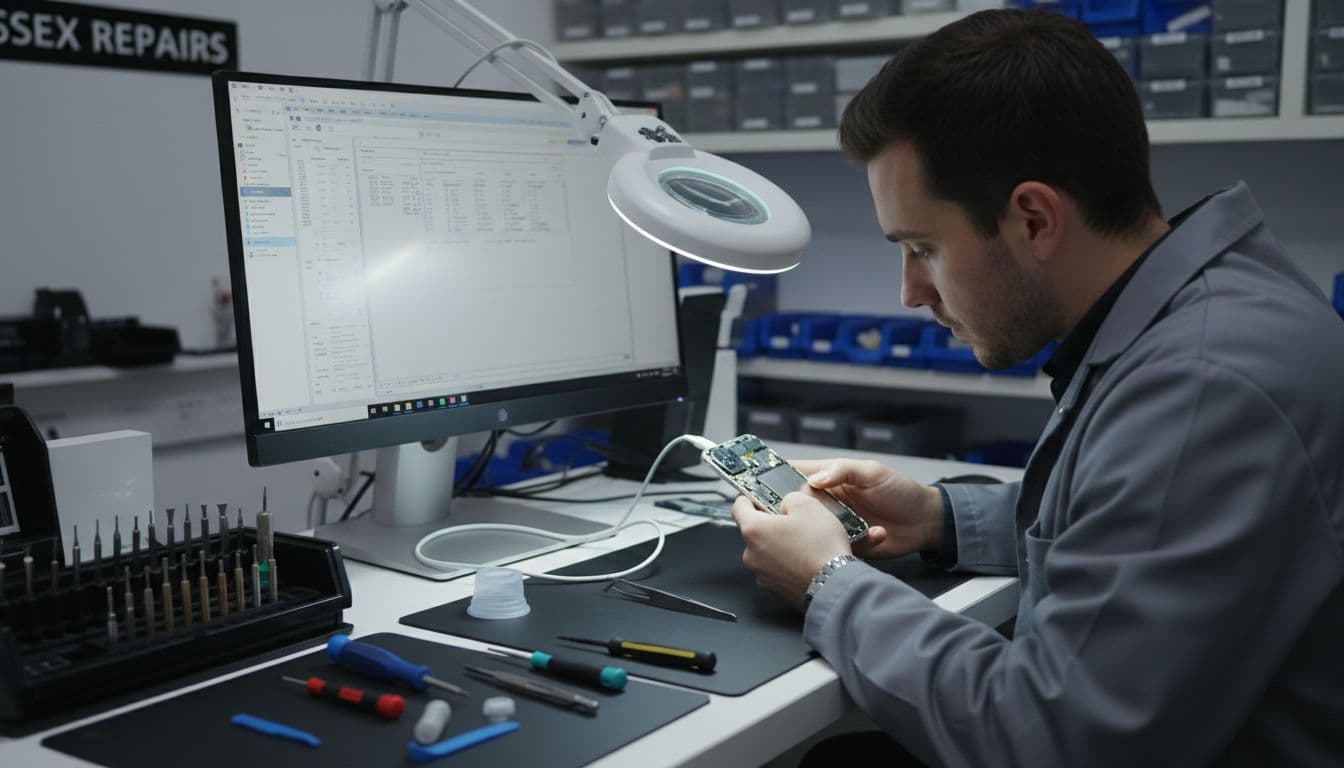
Once we tested it, the battery health was poor and the charging port was full of compacted fluff. After cleaning the port, fitting a new battery, and running the update again, the phone started normally.
We see that kind of overlap a lot. Someone comes in for recovery mode, then also needs iphone battery replacement UK work. Other customers arrive with impact damage, so the same booking turns into cracked iphone screen repair or broader iphone screen repair UK support. We also handle samsung phone repair UK and general mobile phone repair UK jobs, because startup faults aren’t limited to iPhones.
When it’s time to stop trying and book a repair
Home fixes are worth trying once or twice. After that, repeated failed restores can waste time and risk data.
It’s usually time to book in when:
- The iPhone isn’t recognised by Finder or iTunes
- Update fails more than once with a stable cable and computer
- The phone was dropped, bent, or exposed to liquid
- It only powers on when moved or plugged in at an angle
If you’re local, our iPhone repair Essex service is the quickest route. If you’re elsewhere, our mail-in phone repair UK option makes postal phone repair UK simple, with tracked delivery and clear booking steps.
We’ll usually ask for a passcode if testing needs it, but never your Apple ID password. For peace of mind after the job, it’s also worth reading our phone repair warranty UK guide.
Quick questions we hear a lot
Will Update delete our data?
Usually no. Restore will, unless you’ve got a backup.
Can a bad battery cause recovery mode?
Yes. A failing battery can interrupt startup and updates.
Do we only fix iPhones?
No. We cover wider mobile phone repair UK work, including Samsung and other common faults.
Can we post the phone from outside Essex?
Yes. That’s where postal phone repair UK is handy, especially if you need help quickly and can’t get to Harlow.
Your iPhone stuck in recovery mode might look dramatic, but it often has a simple fix. Start with a force restart, try Update through Finder or iTunes, and stop before Restore unless you’re happy to wipe it.
If the phone still won’t play ball, we can test it properly and tell you what’s failed, without the guesswork. You can book online, drop in locally, or send it in by post, and we’ll get it sorted as quickly as we can.
James Waterston, Device Repair Specialist at Repair My Crack