
An iMac that worked perfectly yesterday can leave you staring at a black screen before breakfast. Before paying for an iMac not turning on repair, check the power path, remove accessories and establish whether the computer is actually off or simply failing to show an image.
Most basic checks take only a few minutes and won’t erase your files. If the iMac stays completely silent and unresponsive, stop pressing buttons and arrange a proper diagnosis. We’ll explain the safe checks first, then cover likely faults, repair costs and UK service options.
iMac not turning on: the quick answer
Start with the wall socket, power cable, rear power button and connected accessories. Apple recommends checking the cable, trying a working outlet, disconnecting external devices and holding the power button for around 10 seconds before pressing it normally again. Its Mac power-check guidance covers these steps in more detail.
If you hear sounds, see a faint image or notice connected devices receiving power, the iMac may be starting but suffering from a display or startup problem. If there are no sounds, no image and no response at all, the fault is more likely to involve power delivery, the internal power supply, the power button or the logic board.
When the iMac is truly off
A totally dead iMac usually shows no response when you press the rear button. The screen remains black, the keyboard does nothing and there are no signs of startup activity.
Modern Apple silicon iMacs can be almost silent, so the absence of fan noise doesn’t prove much on its own. However, if a known-good socket and cable make no difference, home troubleshooting has reached its sensible limit.
When the Mac is running but the screen is blank
A black display can point to a damaged panel, a backlight issue, a loose internal connection or a macOS startup problem. The computer may still respond to the keyboard, produce sound or appear on a network.
That distinction matters because replacing a screen won’t fix a failed startup drive. Likewise, reinstalling macOS won’t repair a damaged display connector.
Safe power checks before booking a repair

Work through these checks in order. Avoid opening the iMac, as the display and internal power components need specialist handling.
Check the cable and socket
Inspect the power lead for cuts, crushed sections or loose connections. Push it firmly into the iMac and the wall socket. Some 24-inch iMac models use a separate external power adapter, so check both sides of that connection too.
Try another wall socket that you know works. A socket controlled by a switched extension lead can catch people out, particularly when a desk has several chargers attached.
If you have a compatible replacement cable or adapter available, test it briefly. Don’t force a connector or use a cable with visible damage.
Reset the startup state
Disconnect printers, USB hubs, external drives, Ethernet accessories and mobile devices. Leave only the power connection, then:
- Press and hold the iMac’s power button for about 10 seconds.
- Release the button completely.
- Wait a few seconds.
- Press and release the power button normally.
- Give the Mac time to respond before repeating the process.
Older Intel iMacs may benefit from a model-specific SMC reset. Apple silicon Macs don’t need the traditional SMC reset procedure, so don’t follow an old Intel guide blindly.
Repeatedly pressing the power button won’t revive a failed power circuit, and it can make the original symptom harder to assess.
Power failure or blank screen?
The next step is to observe what happens, rather than guessing from the display alone. A screen that stays black is only one part of the diagnosis.
Clues that point to a power fault
A likely power-related fault includes:
- No response from the power button after testing the socket and cable.
- No startup sound, image or keyboard response.
- A sudden shutdown followed by complete silence.
- A burning smell, unusual heat or visible damage around the cable.
- A failure that began after a liquid spill, electrical incident or physical impact.
Don’t keep trying to start the iMac if you smell burning or see melted plastic. Unplug it from the wall and arrange an inspection.
Symptoms of a display or startup fault
Common screen or display fault symptoms include a faint backlight, vertical lines, coloured patches, flickering or an image that appears briefly before disappearing. A completely black screen with a working keyboard can also indicate a backlight or display connection problem.
If the Mac reaches a folder icon, progress bar or a warning screen, it has power but isn’t completing startup. Apple has separate startup troubleshooting guidance for Macs that stop before reaching macOS.
Don’t factory reset the iMac to solve a physical display fault. That can remove your data without addressing the failed component.
Run Apple Diagnostics when the Mac responds
Apple Diagnostics can test parts such as the logic board, memory and wireless hardware. It won’t diagnose every problem, and it doesn’t replace a hands-on inspection, but a reference code can give a repair technician a useful starting point.
Apple’s Apple Diagnostics instructions explain the process for different Mac generations. Disconnect external devices first, then place the iMac on a hard, stable surface with good ventilation.
Apple silicon iMacs
Shut the iMac down if possible. Press and hold the power button until the startup options appear. When you see the options screen, release the button, then hold Command-D.
The test normally takes a few minutes. Write down any reference code and description it displays. If the iMac has no power at all, Diagnostics won’t start, so there is no benefit in trying repeatedly.
Intel iMacs
Turn on the iMac and immediately hold the D key. If that doesn’t work, try Option-D to start Diagnostics over the internet, provided the Mac can connect to a network.
A clean result doesn’t prove that every part is healthy. Apple Diagnostics focuses on selected hardware and won’t identify every intermittent connection, display fault or macOS problem.
Faults we look for after the basic checks
When an iMac reaches our workshop, we don’t assume the most visible symptom tells the whole story. We check the power input, internal connections, display behaviour and startup process before recommending a repair.
Internal power and board faults
A failed power supply can leave an iMac completely dead, even when the cable and socket work properly. Logic board faults can cause similar symptoms, although the computer may sometimes start intermittently before failing altogether.
Power button faults, corrosion and damaged connectors can also interrupt startup. If liquid has reached the iMac, unplug it straight away and don’t use a hairdryer or radiator to dry it. Heat can damage adhesives and sensitive components.
The same checks apply across devices
Our workshop sees similar diagnostic mistakes with smaller devices. An iPhone component fault after a drop can sit beneath a cracked screen, while a Samsung component fault after a drop may involve the charging board or internal connector.
A Google Pixel component fault after a drop can be hidden by a bent frame. For an iPad component fault or diagnosis, we check charging, power, display and board behaviour instead of assuming the glass is the only problem.
That is why phone hardware troubleshooting in the UK should include the whole device. A “device won’t turn on or won’t charge” diagnosis starts with the history of the fault and finishes with proper testing.
Protect files before sending an iMac for repair
If the iMac starts occasionally, back up important files before carrying out more tests. Use Time Machine or copy essential documents to a trusted external drive. Include photos, work folders, browser data and anything stored on the desktop.
A completely dead iMac may need professional data access work, particularly if the storage or logic board has failed. Avoid erasing the Mac or reinstalling macOS until your files are safe.
Keep useful details for the technician
Write down when the fault started and what happened beforehand. Mention power cuts, liquid exposure, unusual noises, recent updates and whether the iMac had been moved.
If the machine starts but requires a login for testing, we can explain what access is needed. Never send your Apple Account password. Remove external drives and personal accessories before packing the computer.
Avoid DIY opening attempts
iMac displays are fragile and difficult to remove without the correct tools. A home attempt can crack the panel, damage cables or turn a straightforward power diagnosis into a screen repair as well.
If the iMac has suffered liquid damage, keep it unplugged. Further attempts to power it on can spread corrosion and make data recovery or board repair more difficult.
Repair costs, warranty and the UK service route
There isn’t one honest iMac repair price because a cable fault, power supply fault, display fault and logic board fault involve very different work. An inspection may be the only way to provide a reliable quote.
When repair makes financial sense
Repair often makes sense when the iMac has a good screen, useful performance and one clear fault. A healthy 24-inch iMac with a failed power component may be worth repairing, whereas an older Intel model with several faults may not justify a large board-level bill.
We compare the likely repair cost with the age, condition and current usefulness of the computer. If testing finds no fault, an inspection fee may apply under our standard charges. We explain chargeable work and revised options before proceeding where possible.
What warranty cover means
Eligible MacBook and iMac repairs carry a 12-month warranty under our published terms. Cover normally relates to the fitted part or the workmanship involved in the original repair. It doesn’t normally cover a later impact, liquid exposure, misuse or tampering with warranty seals.
You can read the Repair My Crack warranty information before booking. An independent repair may also affect a manufacturer’s remaining warranty, so choose an Apple route instead if preserving that cover is your priority.
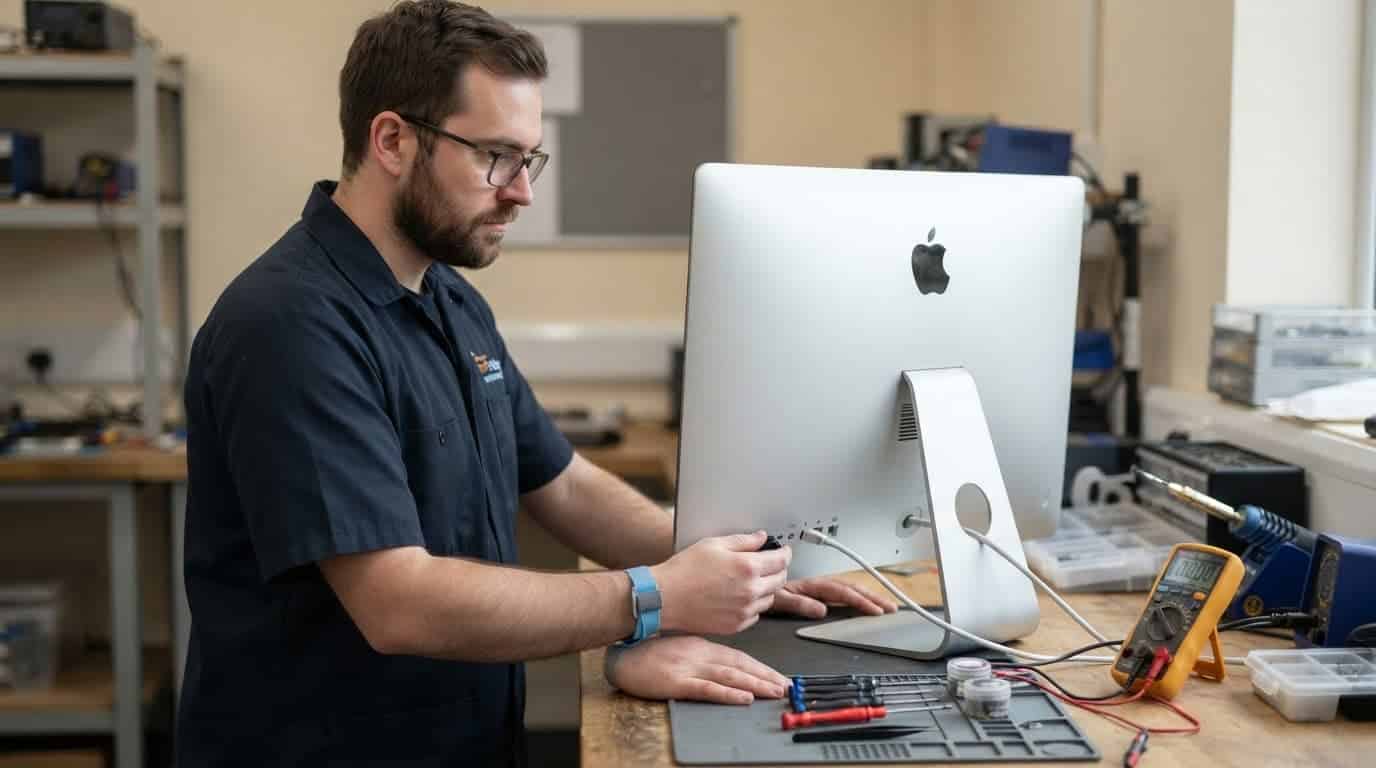
Drop-off or postal repair
Customers near Essex can arrange an appointment-only drop-off at our Harlow workshop. For customers elsewhere in the UK, we can discuss the safest postal option for the iMac before booking, as an all-in-one desktop needs more protection than a phone.
We use quality replacement parts and accredited technicians, and we aim to begin work quickly once a device arrives and the required parts are available. Turnaround depends on the model, fault, workload and testing needed, so we don’t promise an automatic same-day repair.
Pack the iMac in a strong box with proper protection around the screen and stand. Include the order number and a clear description of the fault. If you’re unsure which route fits, get in touch before sending it.
Conclusion
When an iMac not turning on issue appears, start with the socket, cable, accessories and power-button reset. Then separate a true power failure from a blank-screen or startup problem. Apple Diagnostics can help when the Mac responds, but a silent machine needs physical testing.
We check the full device before recommending a repair, explain the likely cost and tell you when replacement makes more sense. A careful diagnosis protects both your data and your budget.
- James Waterston, Device Repair Specialist at Repair My Crack