
Nothing exposes a phone fault faster than a crowded station barrier. When a Pixel falls and stops reacting to your bank card in Google Wallet, the timing couldn’t be worse.
If you have a Pixel NFC not working problem after a drop, the cause may be settings, a phone case, or how the handset meets the reader. However, a hard impact can damage components near the antenna. Start with the simple checks before assuming the handset needs opening.
Key Takeaways
- Before blaming the drop, check NFC, Google Wallet, your screen lock, software updates, and the default payment app.
- Remove cases, magnetic accessories, card holders, and metal rings, then hold the upper rear of the Pixel near the camera bar against the reader.
- Test contactless payments at several terminals. If NFC works elsewhere, the barrier or reader may be at fault rather than the phone.
- Persistent NFC failure after a case-free test, especially alongside cracks, wireless charging problems, or a bent frame, may indicate impact damage to the antenna or internal connections.
- Avoid bending, heating, or opening the Pixel yourself. Arrange a professional diagnostic if the basic checks do not restore NFC.
Get through the barrier before troubleshooting
If contactless payments fail at a TfL barrier, don’t keep tapping in different places for a minute while the queue builds behind you. Move aside if you can, then use a physical payment card or switch to another way of making mobile payments for that journey.
If your Pixel opened the barrier at the start of a journey but won’t work at the exit, ask a member of staff for help. Swapping to a different card or device part-way through can create a separate journey charge.
For quick troubleshooting steps before your next tap:
- Complete the device unlock and confirm that your screen lock is active.
- Remove the phone case, magnetic wallet, card holder, or metal ring.
- Open Google Wallet and check that your intended card is present.
- If available on your Pixel, check Quick Settings for an NFC toggle and make sure it’s on. The tile isn’t available on every Pixel.
- Hold the upper half of the rear of the phone against the reader, near the camera bar.
- Keep it still for a second rather than repeatedly tapping the terminal.
Google Wallet’s tap to pay troubleshooting guidance also confirms that NFC must be turned on and the phone needs a suitable screen lock to meet its security requirements.
If one barrier fails but the same Pixel works at one payment terminal, the phone may be fine. Test it elsewhere before changing settings in a rush.
Pixel NFC not working after a drop: settings to check
A fall may be the obvious event, but it doesn’t always cause the fault. An update, an app change, or a disabled NFC feature can happen around the same time and make the drop look guilty.
First, open Settings, then search for “NFC”. On most Pixels, the route is:
Settings > Connected devices > Connection preferences > NFC
Turn NFC off, wait ten seconds, then turn it back on. Also open the contactless payments option and check that Google Wallet is set as the default payment app. An active screen lock may be needed to meet security requirements.
Quick Settings can help you check the NFC toggle, although the tile may not appear on every Pixel setup. If the NFC toggle is greyed out, restart the phone first. Then install any available software update, including an Android system update and Google Play system update. A work profile or device-management policy can also restrict NFC on a business handset.
Next, check Google Wallet itself:
- Update Google Wallet through the Play Store.
- Confirm that a PIN, pattern, or password screen lock is active.
- Open the card in Wallet and look for any request to verify it again.
- Restart phone after making changes, then test it.
We wouldn’t do a factory reset on a Pixel at this stage. That’s a lot of faff, and it rarely fixes a damaged antenna or a loose internal connection.
Clear cache before clearing app data
A corrupted cache can stop Wallet or Google Play Services from refreshing properly. Start with the least disruptive option:
- Go to Settings > Apps > See all apps > Google Wallet.
- Choose Storage & cache, then tap Clear cache.
- Repeat this for Google Play Services.
- Restart the Pixel and test it at a different contactless reader.
If Wallet still fails, you can clear its storage and sign in again. Clearing that service’s data is a later step, because it can reset service settings and prompt you to reauthenticate. Back up anything important first, and don’t clear data whilst standing at a platform barrier.
For a visual refresher on the toggle, restart, and cache steps, this practical Pixel NFC toggle guide follows a similar order.
Find the NFC antenna and remove anything blocking it
The NFC antenna is not in the middle of the screen. On most recent Pixel models, it sits in the upper rear area, around or below the camera bar. That is where the phone should sit flat against the reader.
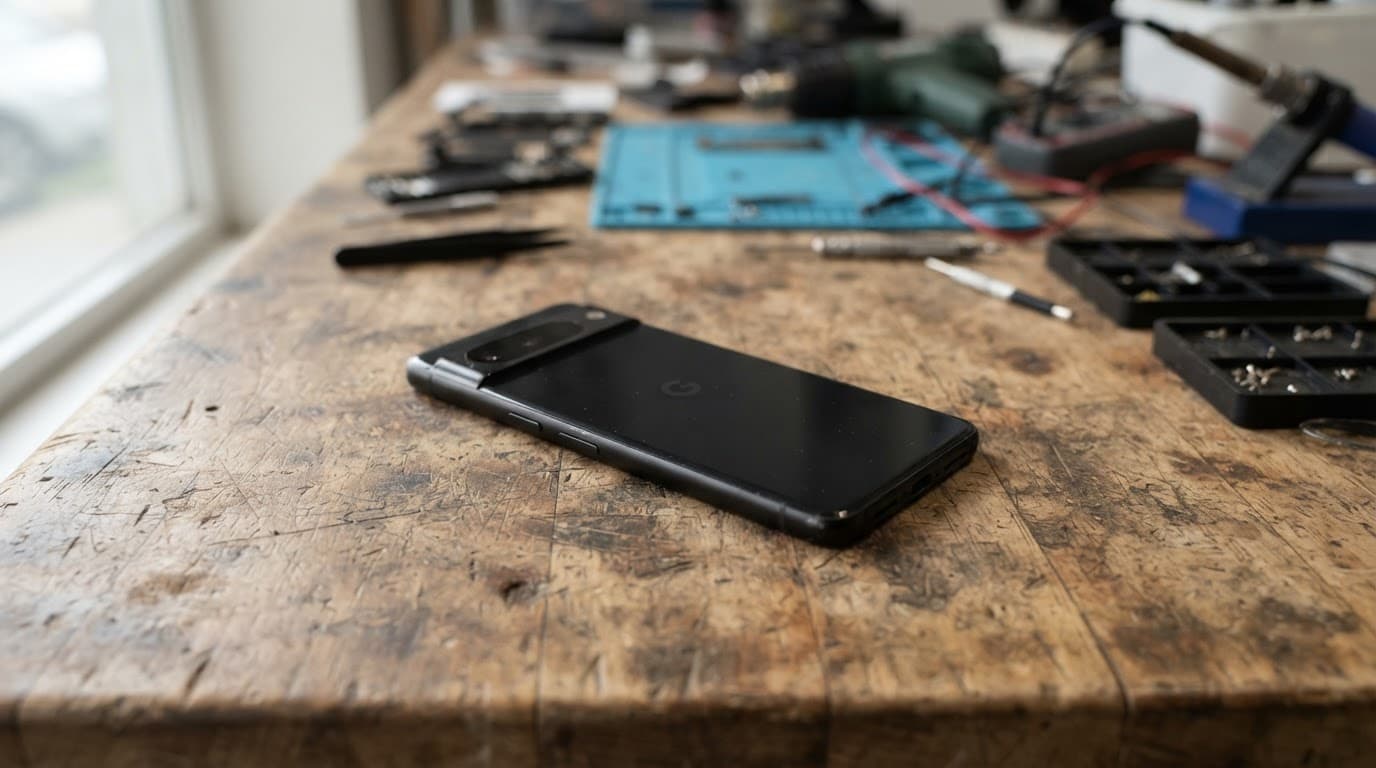
A thick phone case can weaken the NFC signal, especially if it has a metal plate, built-in card compartment, pop grip, magnetic ring, or wireless-charging accessory. Leather covers can also cause trouble when they hold bank cards directly behind the phone.
Remove every accessory for one test. If contactless payments return straight away, the Pixel itself is likely healthy. Choose a slimmer, non-metal option rather than pressing harder against readers.
Older references may call the app Google Pay, but Google Wallet is the current payment app on most UK Pixels. The important thing is that it is selected as the default payment app and the phone is unlocked, rather than sitting at the screen lock.
Signs the drop caused a hardware fault
NFC remains dead after a case-free test and fails at multiple readers, despite being enabled. The drop then deserves closer attention. That combination points to a hardware problem rather than software. The NFC antenna, its contact points, or rear housing may have shifted. A crack near the camera bar, raised back glass, bent frame, or unreliable wireless charging makes that more likely.
We also look for related faults. A hard corner impact can cause camera faults. It may also affect the battery connector, charging port, screen assembly, or NFC. The same post-drop checks apply to an iPhone screen repair in the UK, a cracked iPhone screen repair, and a Samsung phone repair in the UK.
We recently repaired a Galaxy S23 Ultra from Essex after it slid off a car roof at a petrol station. The front display survived, but the rear glass shattered around the cameras. Because the frame remained straight and the cameras focused correctly, a rear-glass repair made sense. A twisted frame would have changed the job completely.

Don’t try to force the back cover down, bend the frame straight, or heat the Pixel with a hairdryer. Adhesive, flex cables, and the battery sit close together. A DIY attempt can turn an antenna inspection into a screen, back-glass, and battery repair.
If the battery began draining sharply after the fall, it needs testing before anyone suggests an iPhone battery replacement in the UK or a similar battery job for another handset. A new battery won’t fix an impact-damaged connection.
NFC Still Not Working? Get It Checked
If settings and a case-free test haven’t fixed it, the antenna or a connector may need attention.
Check My Pixel Repair PriceWhen a professional inspection makes sense
Book a diagnostic if NFC remains unavailable after the settings checks and the phone fails at several terminals. The same applies if the NFC switch stays greyed out after a restart or updating the phone.
At Repair My Crack, we inspect the frame, rear cover, charging behaviour, camera area, and relevant internal connections before recommending a repair. If testing shows further damage, we explain the options before chargeable work goes ahead.
A phone repair in Essex appointment is available in Harlow by arrangement. For customers looking for mobile phone repair across the UK, our tracked Royal Mail service offers a practical alternative. Book online and pack the phone securely with the order number. Include the necessary passcode or active screen lock, so our technician can test Google Wallet and NFC properly.
If the display or back glass is damaged too, our phone screen repair advice can help you judge whether repair is sensible. Independent repairs can affect manufacturer cover, so check your existing warranty or insurance terms before booking.
Our postal phone repair UK service aims to start work as soon as the device arrives. We use quality parts, offer a price promise, and confirm the warranty that applies to the specific repair.
Common questions after a Pixel drop
Can a thick case block NFC on a Pixel?
Yes. Metal plates, magnetic accessories, cards, and very thick cases can prevent reliable NFC use. Remove the case completely for a proper test.
Why did a software update seem to break NFC?
Updates can refresh settings, app components, or Wallet verification after a drop. Check NFC, your screen lock, and app updates before blaming the update or the impact.
Should I use a factory reset?
Only as a final software step after backing up your data. This step cannot repair a dislodged antenna, cracked rear housing, or bent frame.
What if only Google Wallet will not tap?
Check the card’s status in Wallet, verify the default payment app, and test another reader. Confirm your screen lock and device unlock before clearing app data or blaming the drop.
A sensible next step
A Pixel NFC not working after a drop is often recoverable without replacing the phone. Start with settings, Wallet, a case-free test, and the correct antenna position near the camera bar. Together, these checks can often restore contactless payments.
If the issue persists, continue with simple checks only if they feel safe. Otherwise, arrange a proper inspection to identify whether the cause is software, an accessory, or impact damage.
Get an Instant Price for Your Pixel
Free tracked postage both ways, insured up to £750, with a 12-month warranty on every repair.
Check My Pixel Repair Price– James Waterston, Device Repair Specialist at Repair My Crack