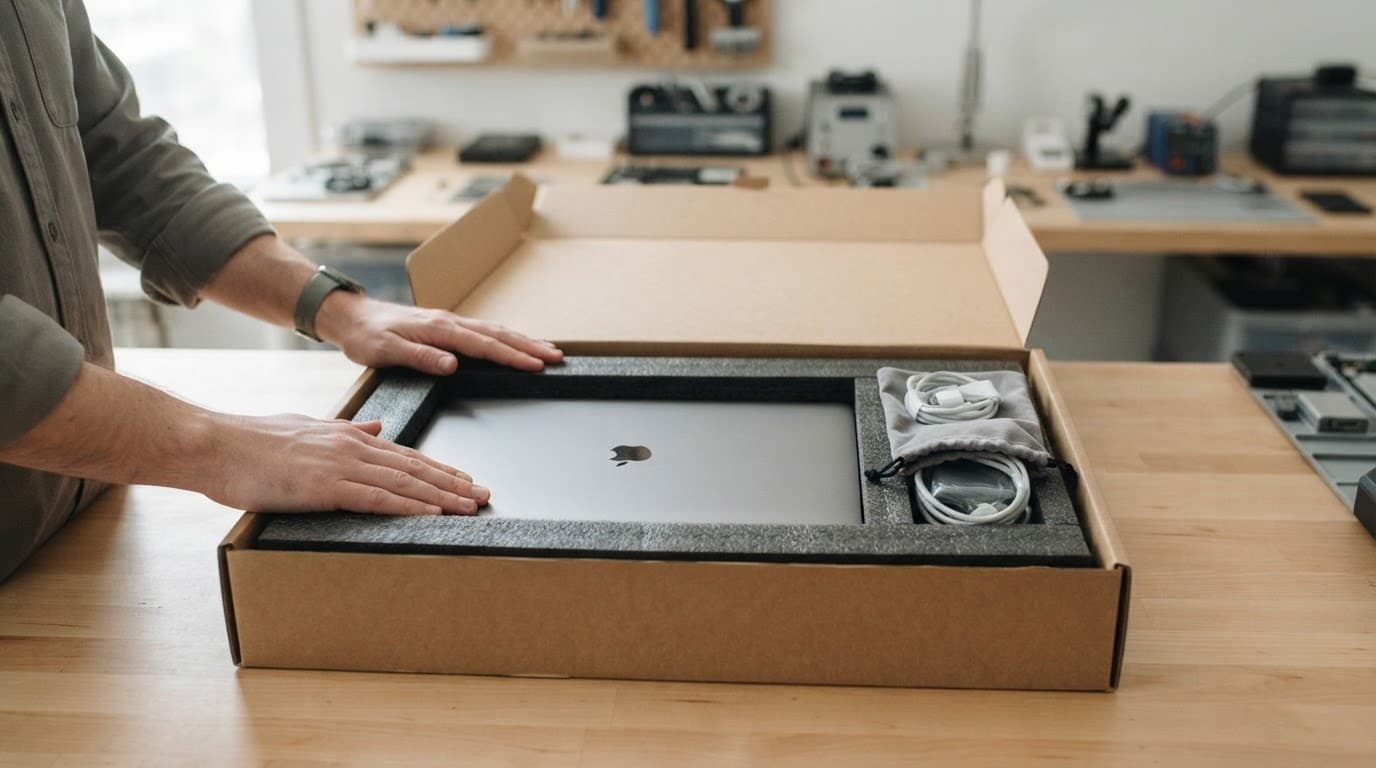
Few things are more worrying than posting a laptop that already has a cracked screen, a charging fault or a keyboard that has stopped working. However, knowing how to package laptop for repair properly protects it from a second round of damage in transit.
For most laptops, the safe approach is simple: back up your files, switch it off, use a rigid box and stop it moving inside. A few extra minutes at the kitchen table can save a lot of hassle later.
Prepare the laptop before it goes in the box
Packing starts before you reach for bubble wrap. A backup protects your files if the fault worsens, while clear notes help us test the right problem once the laptop reaches our Harlow workshop.
Back up data and describe the fault
Save important files to an external drive or cloud storage before sending anything away. Then write a short fault note with the laptop model, your order number and the behaviour you have seen.
Mention details such as whether it overheats, only charges at a certain angle, has lines on the display or shuts down after a few minutes. If testing needs a login, give access details through the agreed route, never on the outside of the parcel.
Photograph the laptop’s condition, including corners, ports and any existing marks. This gives everyone a clear record before the repair begins.
Check the battery before posting
Switch the laptop off fully, rather than leaving it asleep. Remove USB sticks, discs, memory cards and any loose accessories that aren’t needed for diagnosis.
A laptop with its battery fitted is normally easier to send than a separate battery. However, do not post a laptop with a swollen, leaking, recalled or visibly damaged battery. Royal Mail’s restricted items guidance confirms that damaged or recalled batteries are not accepted.
If the battery looks swollen, the case is lifting or the laptop becomes unusually hot, stop charging it and contact us before arranging postage.
How to package laptop for repair without transit damage
Use a sturdy cardboard box that is larger than the laptop on every side. The original retail box can help, but it still needs a strong outer box for postal travel.
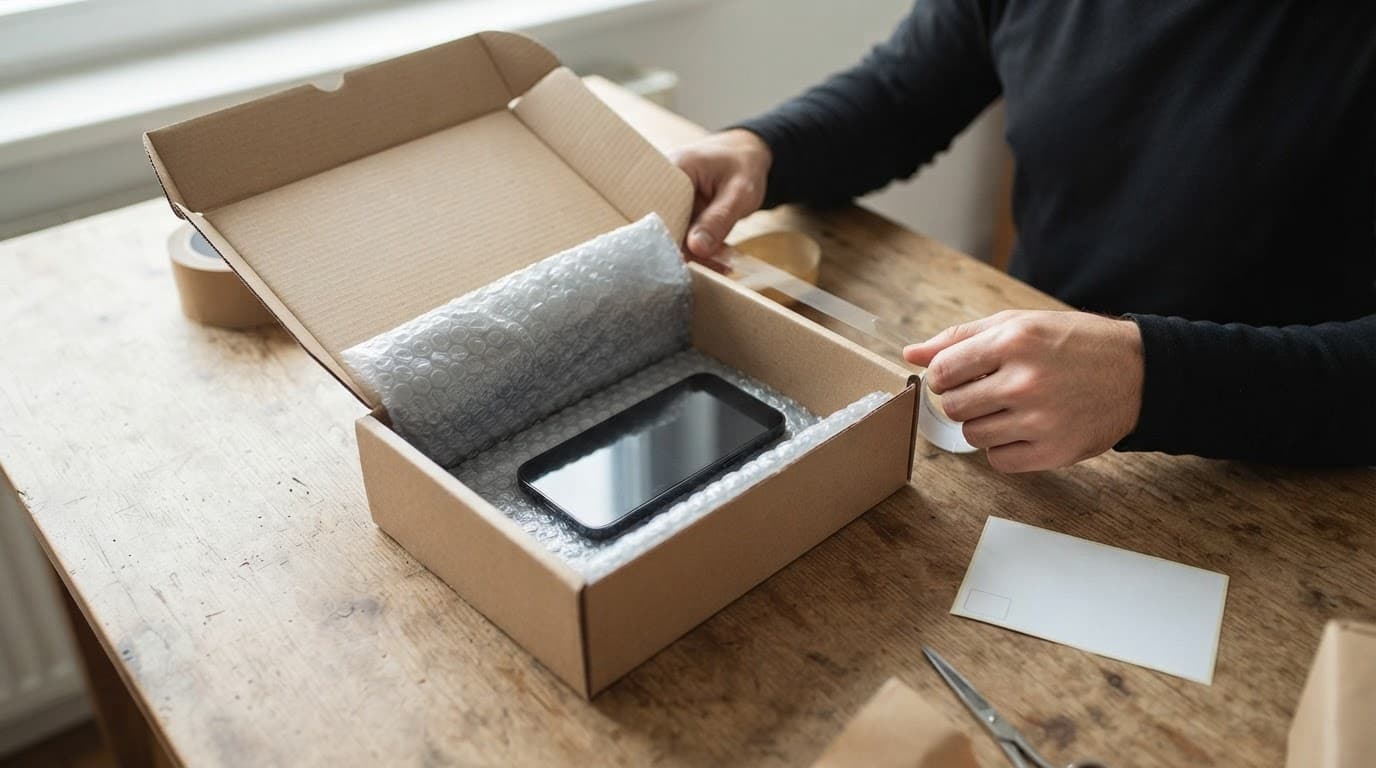
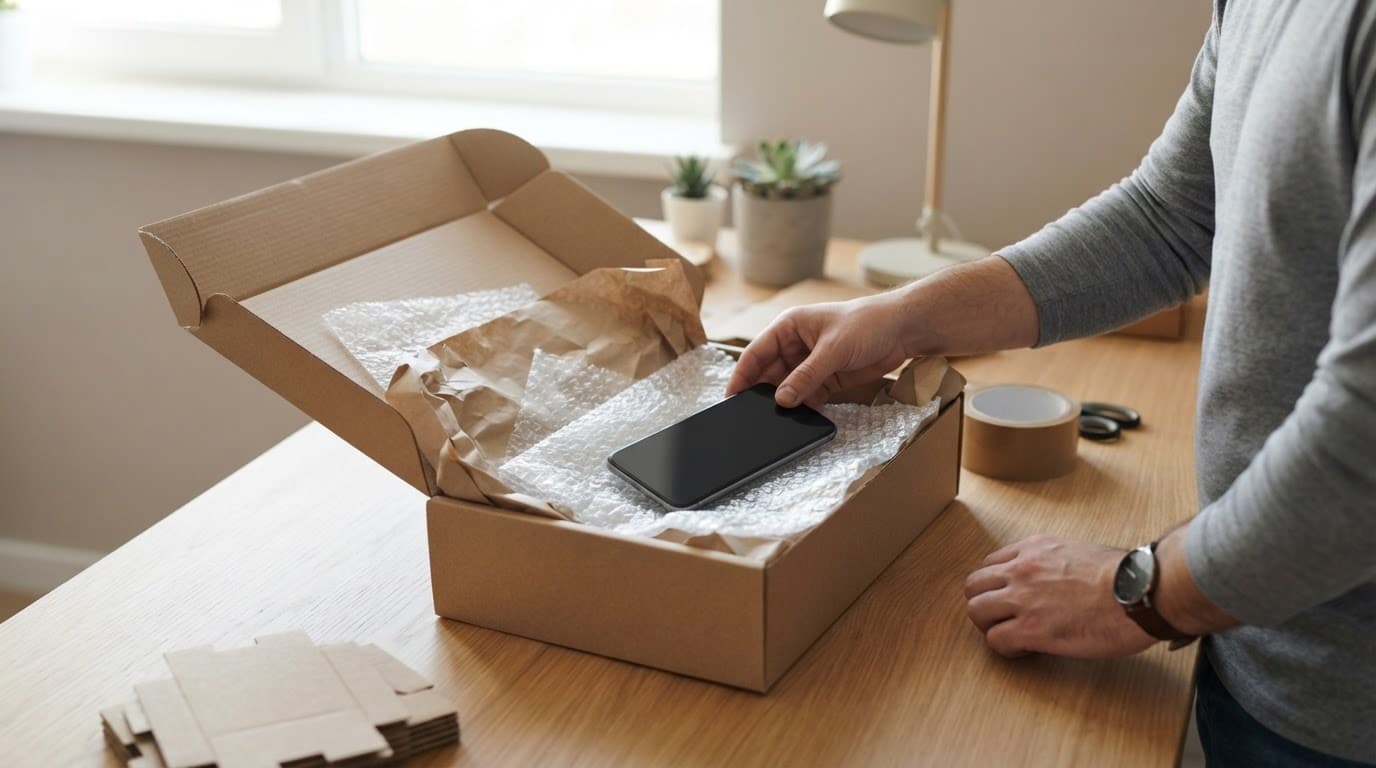
Before you package laptop for repair, follow this simple order:
Close the laptop and place a clean sheet of card or soft cloth between the keyboard and screen.
Wrap the machine in several layers of bubble wrap, with extra protection around the corners.
Put it in the centre of the box, leaving room for padding on every side.
Fill empty spaces with packing paper, foam or air cushions until the laptop cannot shift.
Seal every opening with strong parcel tape, then add the delivery and return addresses clearly.
Royal Mail’s packaging advice for larger items also recommends robust packaging for laptops and other larger electronics. Give the sealed box a gentle shake. If you can feel movement, add more cushioning.
A laptop can look well wrapped but still suffer damage if it has room to slide into the corner of its box.
What to include in a repair parcel
Put your order number and contact details inside the parcel, ideally in a small envelope or folded note. This lets us match the laptop to its booking as soon as it arrives.
Keep chargers and extras at home
Only send the charger if the fault relates to charging and we have asked for it. A loose charger can scratch the laptop in transit, even when wrapped separately.
Remove cases, dongles, mice and external drives unless they help reproduce the fault. If the charging cable only works at a certain angle, tell us in your note rather than sending every cable from your desk drawer.
For display faults, our guide to UK postal MacBook screen repair covers what can affect the repair cost and why a bent housing matters. Independent repairs can affect a manufacturer’s warranty, so it is sensible to compare your options if your laptop still has cover.
What happens after the laptop arrives
We receive postal repairs from across the UK, not only Essex. Once your laptop arrives through our tracked repair process, we inspect the condition, check the reported fault and contact you if testing finds additional work.
A recent MacBook assessment involved a drink spill and several unresponsive keys. The laptop still started normally, but residue beneath the keyboard affected its operation. We checked for corrosion, explained the repair options and only moved forward after the customer had the information needed to decide.
The same preparation helps with phones and tablets
Clear notes and careful packing also make our UK phone hardware troubleshooting quicker. They help when we are checking a dropped iPhone, Samsung or Google Pixel for a component fault.
The same applies when an iPad needs a component diagnosis, when you have screen or display fault symptoms, or when a device will not turn on or charge. Describe what happened before the fault started, especially after a drop, liquid exposure or previous repair.
A secure parcel gives the repair a better start
The strongest rule is simple: a laptop should not move inside its box. Back up your files, power it down, protect the corners and avoid sending loose batteries or unnecessary accessories.
When you need to package laptop for repair, book the work first and include the order number inside. We will inspect the laptop properly, explain the options plainly and get it back to you as quickly as we can.
A phone repair can become a bit of a faff when the screen is dead or the handset won’t charge. Fortunately, finding the IMEI is usually quick, even if you can’t unlock the device.
If you’ve searched for “find IMEI number” because your phone is heading to a repair bench, you’re in the right place. The IMEI identifies the handset, while the model, symptoms and repair history help us understand what has gone wrong.
How to Find IMEI Number on iPhone, Samsung and Pixel
The quickest method depends on the brand. Check the phone itself first, then use the box, account records or a connected computer if the device won’t respond.
iPhone
Open Settings > General > About and scroll down to find the IMEI or IMEI/MEID. Apple’s official IMEI guidance also covers EID, serial numbers and other device details.
If the screen works but touch does not, connect the iPhone to a Mac using Finder, or to a Windows computer using the Apple Devices app or iTunes. You can also sign in to your Apple Account and check the device list. The original box should show the IMEI on its barcode label.
Samsung Galaxy
On most Galaxy phones, open Settings > About phone. You can also open the Phone app and dial *#06#, which normally displays the IMEI and serial number.
If the screen is unusable, check the original box, purchase receipt or mobile contract. Samsung Members may also show the registered handset details. Samsung’s UK device-number guidance lists several ways to locate them.
Google Pixel and iPad
On a Pixel, go to Settings > About phone and look for the IMEI. If the phone is still linked to your Google Account, Find Hub or Google’s device records may show it when the handset is offline.
For an iPad, use Settings > General > About. Only iPads with mobile data have an IMEI. Wi-Fi-only models normally have a serial number instead. The IMEI may also appear on the original packaging.
Finding the IMEI When the Phone Won’t Turn On
The best way to find IMEI number details on a dead phone is to check records created before the fault happened. This is especially useful after a drop, liquid exposure or charging problem.
Check the box and account records
Look at the barcode label on the original packaging. Keep an eye out for two IMEIs, as dual-SIM phones can have IMEI 1 and IMEI 2. Record both if they appear.
You may also find the number in an Apple Account device list, Samsung Members, Google device records, a network account or a purchase receipt. For an iPhone, a previously trusted computer can sometimes display the number even when the handset screen remains black.
The IMEI does not diagnose the fault
For a “device won’t turn on or won’t charge” diagnosis, the IMEI only confirms which handset has arrived. It won’t tell us whether the problem sits with the battery, charging port, display, connector or main board.
It also isn’t a password or a way to unlock the phone. Treat it as private device information and avoid posting it publicly.
What to Record Before Sending the Phone
Once you find IMEI number details, write them down with the exact model and your repair notes. That gives the technician a clear starting point and reduces the chance of a mix-up.
Note every symptom
Include:
The IMEI or IMEI numbers, serial number and exact model.
What happened, such as a drop, liquid exposure or sudden charging failure.
Whether the phone rings, vibrates, heats up or connects to a computer.
Any previous repair, screen replacement or battery change.
Whether the fault is constant or appears only at certain angles.
Take photographs of the front, back, corners, camera area and charging port. Our phone repair preparation checklist covers useful pictures and details to include before posting a device.
Protect your data first
Back up photos, messages, contacts and authentication information while the phone still works. Apple recommends turning off Find My before service. If you can’t do that on the handset, use the Find My app or your Apple Account.
Remove the SIM card and don’t send loose accessories unless the repairer asks for them. If testing requires the passcode, provide it through the repair booking process rather than writing it on the parcel. Our passcode guidance for phone repairs explains why technicians may need access after a repair.
What an IMEI Cannot Tell You About Drop Damage
An IMEI identifies the device, but the symptoms point towards the repair. Our phone hardware troubleshooting in the UK starts with the timing of the fault, the physical condition and the functions that changed.
Record screen and component symptoms
Common screen or display fault symptoms include flickering, black patches, dead touch areas, coloured lines or a screen that stays black while the phone vibrates.
An iPhone component fault after a drop can involve the display, charging port, camera or an internal connector. A Samsung component fault after a drop may affect a button, camera or charging connection without leaving an obvious mark.
A Google Pixel component fault after a drop can appear as intermittent charging, restarts or a soft volume button. An iPad component fault or diagnosis may involve the display assembly, battery connection or charging circuit.
A workshop example
A recent Pixel arrived after hitting a pavement. The screen had no major crack, but the volume-down button felt soft and worked only intermittently. Inspection found that the side rail had taken the impact and was pressing against the button assembly.
The IMEI helped us match the device to the booking. The symptoms and physical checks showed that this was hardware damage, rather than an Android settings issue.
Sending the Phone for Repair
After recording the IMEI and backing up your data, pack the handset tightly in protective material inside a sturdy box. Include the order number, describe every known fault and keep the tracking details until the phone returns.
We offer UK mail-in phone repairs as well as appointment-only drop-off repairs in Harlow, Essex. We inspect the device before chargeable work where possible and contact you if the confirmed repair differs from the original booking. If no fault is found, an inspection fee may apply under our standard terms.
Repairs use quality replacement parts and include warranty cover according to the part and service. Independent repair may affect a remaining manufacturer warranty, so compare both options if the phone is still covered.
If you had to search for “find IMEI number”, save the result somewhere secure with the model, serial number and fault description. Record both IMEIs on a dual-SIM phone, back up your data and photograph the device before it leaves your hands.
That small amount of preparation makes the handover easier and gives us better information when testing begins. The IMEI identifies the handset, but careful notes help us identify the repair.
James Waterston, Device Repair Specialist at Repair My Crack
When a Pixel lands on a corner, the screen isn’t always the only thing that suffers. A Pixel torch not working fault can appear straight away, even when the phone still unlocks, makes calls and looks mostly fine.
The short answer is that the torch may have lost its connection to the rear camera or flash circuit. Android can also disable the torch when the camera is stuck, the phone is too hot or the battery is critically low. We can rule out the simple causes first, then inspect the handset properly if the fault started with the impact.
Pixel torch not working: what the drop may have damaged
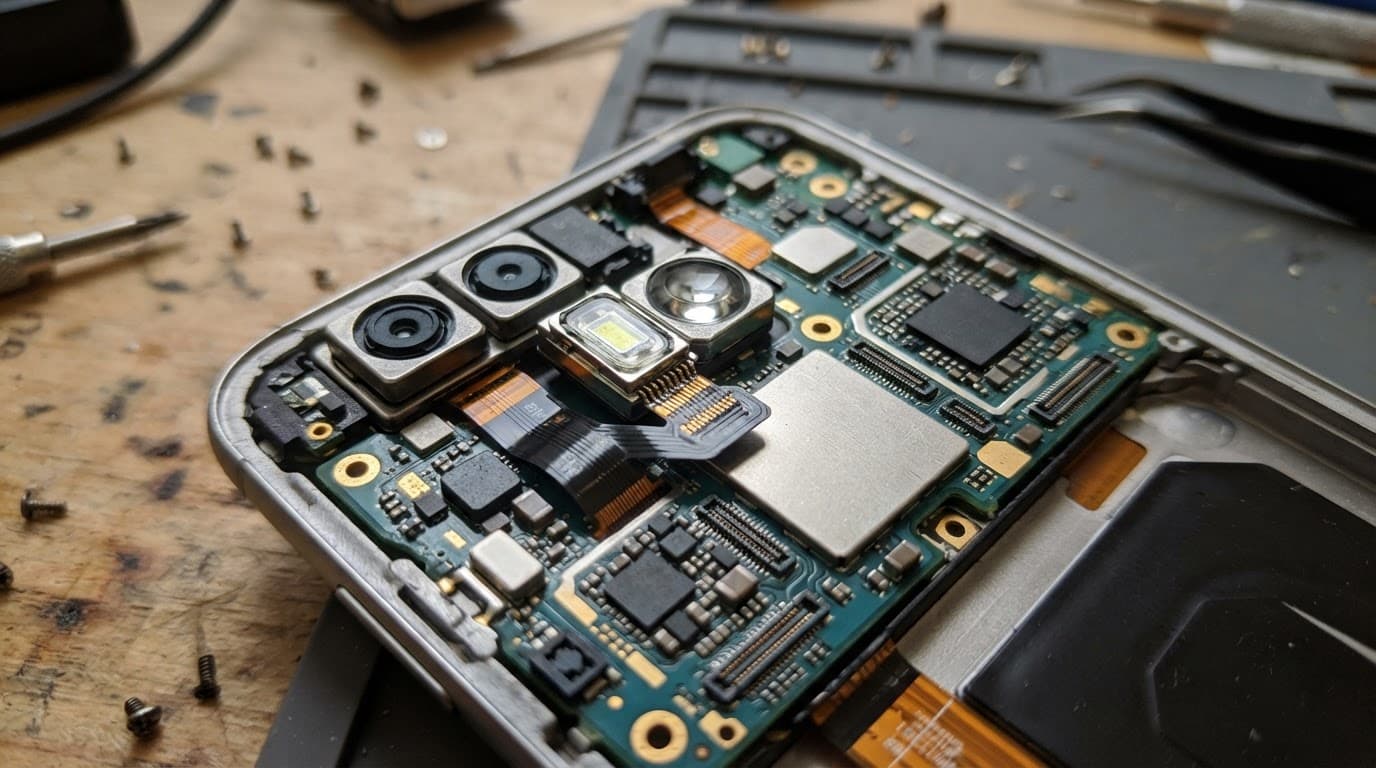
The torch uses the LED flash beside the rear camera. It isn’t a separate plug-in light that sits away from the rest of the phone. The flash, camera module and main board communicate through small connectors and flexible cables, so a sharp impact can disturb one part of that chain.
Several faults can produce the same greyed-out or unavailable torch icon:
A camera or flash connector may have shifted after the phone hit the floor.
The rear camera module may have suffered impact damage.
A bent frame can press against internal parts and stop a connection sitting correctly.
Cracked rear glass can let in dust or moisture, especially when the phone is used outdoors.
A damaged power circuit may prevent the LED from receiving power.
The torch may be temporarily blocked by the camera app, heat protection, low battery or a software fault.
The rear camera is a useful clue. If the torch fails but the camera works normally, the LED circuit or its connection may be the problem. If the camera also shows a black preview, crashes or refuses to focus, the camera assembly or a shared connection deserves closer attention.
Google’s Pixel support community includes reports where rear camera failure and a disabled flashlight appeared together. That does not prove every torch fault is hardware-related, but it shows why testing both features matters.
A small crack around the camera area can also make later moisture damage more likely. Even if the torch returns for a while, repeated failure after a drop shouldn’t be ignored.
Safe checks before booking a repair
A few checks are safe to try at home. They won’t repair a broken connector, but they can separate a temporary software problem from damage caused by the fall.
Remove the case and check the phone under good light. A tight case can hold a damaged button or press against a slightly bent frame.
Restart the Pixel, then test the torch from Quick Settings. Also test the rear camera, flash in the camera app and video recording.
Close the camera, QR scanner, Snapchat, Instagram and any other app that may be using the camera. Android can keep the torch unavailable while another app has control of the camera.
Check whether the handset feels unusually hot or has a very low battery. Let it cool naturally and charge it with a reliable cable if the phone looks physically safe.
Back up your photos, contacts, messages and authenticator information while the phone still works.
A camera app update or a restart may solve a software glitch. However, if the torch stopped immediately after the impact and remains unavailable, repeated resets are unlikely to help. Avoid a factory reset before a hardware inspection, because it can erase useful information without fixing a damaged part.
Don’t use a hairdryer, radiator or kitchen tool to open the Pixel. Heat can damage the battery and screen adhesive, while a screwdriver in the wrong place can turn a loose connector into a torn cable. If the screen is lifting, the phone is getting hot, or the battery looks swollen, switch it off and don’t charge it.
A general phone flashlight troubleshooting guide also covers low battery, power-saving settings and camera-related causes. Those checks are sensible, but physical damage needs a different approach.
How a repairer finds the real fault
We start with the phone’s history. A drop onto a corner suggests different risks from a handset that was squeezed in a bag or exposed to water afterwards. We then inspect the frame, rear glass, camera lens and gaps around the housing before opening anything.
The next stage is functional testing. We check:
Whether the rear and front cameras open reliably.
Whether the rear camera focuses and records video.
Whether the torch works from Quick Settings and another app.
Whether the phone charges normally and stays at a safe temperature.
Whether other features failed at the same time, such as vibration, microphones or wireless charging.
Inside the handset, we look for a displaced connector, torn flex cable, cracked camera module, pressure from the frame or signs of corrosion. A connector can sometimes be reseated. Other cases need a camera or flash-related part. Board damage needs more careful assessment, and repair may not be sensible if several circuits have failed.
A familiar workshop pattern is a Pixel that arrives after a corner impact with a grey torch icon, a rear camera that struggles to open and no obvious problem with calls or Wi-Fi. We test the camera and flash together, inspect the connection, then check the handset again after any repair. That stops us from replacing a part that was never responsible for the fault.
When the camera and torch fail together after a drop, replacing the LED alone may not solve the problem. The shared connection and camera assembly need testing first.
Torch or Camera Not Working? Get It Checked
We test the camera and flash together before quoting — no guesswork.
Repair costs and when replacement makes more sense
There isn’t a responsible flat price for every Pixel torch fault. The cost depends on whether the problem is a loose connection, a camera module, a damaged frame, liquid corrosion or a board-level fault. We confirm the fault and explain the options before chargeable work begins.
For context, guide prices for common UK repairs often fall within these ranges:
Repair type
Typical guide range
Screen replacement
£60 to £180
Battery replacement
£40 to £80
Charging port repair
£50 to £90
Water-damage treatment
£60 to £120
Pixel torch or camera fault
Quote after inspection
These figures are guides, not fixed promises. A screen, battery or charging port may have been damaged during the same fall, so the final repair can involve more than the original symptom suggests.
Repair usually makes sense when the Pixel has one clear fault, a healthy main board, a reasonably straight frame and good battery life. Replacement becomes more sensible when the phone has heavy corrosion, a badly twisted chassis, several major faults or a repair cost close to the value of the handset.
The same judgement applies beyond Pixel work. A cracked iphone screen repair is often worthwhile when the rest of the phone is sound. Someone comparing iphone screen repair UK options should ask whether the quoted part includes fitting, adhesive, testing and warranty. An iphone battery replacement UK job also needs proper testing first, because poor charging can come from the port rather than the battery.
Independent repair can affect a manufacturer’s warranty, so check those terms before booking. Our repair terms also distinguish between parts. Batteries and other components carry 12 months’ cover, while screen warranty depends on the screen type stated in the quote. If no fault is found, an inspection fee may apply under the standard charges.
Choosing a repair service in Essex or across the UK
People searching for phone repair Essex often want a quick local inspection. We offer appointment-only drop-in repairs in Harlow, Essex, alongside express repair options for common smartphone faults. Our accredited technicians use quality replacement parts and test the handset after the work.
Customers who live elsewhere can use our postal phone repair UK service. You can book online, package the phone securely, include the order number and provide any necessary passcode details. Back up your data first, remove the SIM card and avoid sending loose accessories unless we ask for them. Free tracked Royal Mail postage and tracked returns help keep the journey clear.
We aim to start work as soon as the device arrives, often on the same day, although parts availability and the fault itself affect the timescale. A postal repair still needs proper testing, so a complicated camera or board fault may take longer than a straightforward screen replacement.
Our phone screen repair turnaround times guide explains why testing can take longer than fitting a replacement part. The same principle applies to a Pixel torch fault. The visible symptom may take seconds to describe, but the correct diagnosis requires checking the rest of the handset.
We also handle mobile phone repair UK enquiries across common iPhone and Samsung faults. For example, our Samsung phone repairs cover camera, charging, battery and screen problems. The same post-drop checks matter whether the handset is a Pixel, Galaxy or iPhone.
Quick answers about Pixel torch faults
Can a restart fix the torch?
Yes, if an app has held the camera open or Android has temporarily disabled the LED. A restart won’t fix a damaged connector, camera module or board.
Is it safe to keep using the Pixel?
If the phone is cool, the frame is straight and the battery looks normal, limited use is usually reasonable while arranging an inspection. Stop using it if the handset heats up, the screen lifts, the rear glass opens or charging becomes unreliable.
Will a repair erase the data?
Routine hardware repairs usually focus on parts rather than storage. Even so, we recommend backing up before sending or opening any device. A drop can reveal a separate fault, and a backup protects your photos and files if the repair becomes more involved.
Conclusion
A Pixel torch not working after a drop often points to a camera, flash connection or internal power fault rather than a simple torch setting. Test the camera, restart the phone, back up your data and inspect the frame, but don’t heat, bend or pry open the handset.
If the fault remains, a proper diagnosis gives you a clearer choice between a sensible repair and replacement.
Get an Instant Price for Your Pixel
Free tracked postage both ways, insured up to £750, with a 12-month warranty on every repair.
A dropped Pixel can look fine on the outside, then leave you unable to turn the volume up during a call. It is a proper nuisance when your phone still works, but the side controls suddenly do nothing.
If you notice Pixel volume buttons not working straight after a fall, the cause is often physical. A restart or setting change can sometimes imitate a physical fault. An app conflict or software glitch can produce the same symptom. Start with the safe checks below before assuming the phone needs parts.
Key Takeaways
Pixel volume buttons that stop working immediately after a drop are often affected by a bent side rail, damaged button mechanism or faulty flex cable.
Remove the case, inspect the rocker, restart the phone and test Safe Mode before assuming a hardware repair is needed.
A mushy, jammed or flat button should not be pressed repeatedly, especially if the screen, frame or battery also shows signs of impact damage.
Use the Accessibility Menu, Bluetooth controls or Google Assistant as temporary workarounds while arranging a professional inspection.
Back up your data before troubleshooting further, and treat a factory reset as a last resort rather than a fix for obvious physical damage.
First checks after a Pixel drop
Start by removing the case to rule out case interference. Thick or poorly fitted cases can press against the volume controls after an impact, especially if the frame has picked up a small dent.
Then inspect the side of the handset under good light. Look for a bent rail, a gap around the volume rocker, cracked rear glass, or a button sitting lower than usual. Press each side gently.
A healthy button should give clear, springy tactile feedback, showing that the external control is moving normally. If it feels normal but does not change media volume, software or the internal flex cable may be at fault. If it feels mushy, jammed or completely flat, the impact may have damaged the button mechanism.
If pressing the keys changes accessibility sliders rather than sound, check whether TalkBack, Select to Speak or Switch Access is active.
Take these steps before trying anything more involved:
Back up photos, messages and authenticator apps while the Pixel still responds.
Remove any debris around the button with a dry microfibre cloth.
Check whether the screen or back cover is lifting away from the frame.
Stop charging the phone if it feels unusually hot, the battery looks swollen, or the casing has separated.
A reboot can clear a software wobble, but it cannot repair a dented side rail or a torn button flex cable.
If the display has cracked too, do not press hard around the button to make it work. Pressure near a damaged edge can turn a straightforward button fault into a screen repair as well.
Rule out a software issue before booking a repair
Although a drop points towards hardware, it is worth spending five minutes on software checks. A system update or a downloaded app can change what the volume keys control.
Restart the Pixel once and test both directions on the volume rocker. If the touchscreen works but the power button does not bring up the menu, hold it for around 30 seconds for a forced restart. Wait for the Google logo, then test the rocker again.
If they change an accessibility feature shortcut rather than media volume, Android may have assigned the keys to another function. Open Settings > Accessibility from the settings menu, then review the accessibility menu for TalkBack, Select to Speak and Switch Access. Check Select to Speak and Switch Access key assignments, then turn off any unused Switch Access shortcut and test the buttons.
Android Accessibility Suite can also cause odd key behaviour after an update. Google community guidance for a Pixel 6a volume button problem suggests checking the Android Accessibility Suite app settings and recent update history, then selecting uninstall updates where appropriate. After you uninstall updates for Android Accessibility Suite, test the keys again, but only when the symptom resembles a settings conflict, not when the key is physically stuck.
Boot into Safe Mode, then test the volume controls there. If the rocker works in Safe Mode, third-party apps are likely causing the conflict, so uninstall any recently added launcher, accessibility tool, audio app or remapping app. If it still fails in Safe Mode, downloaded software is unlikely to be the cause.
A factory reset should be the last software step, not the first. Back up your data before considering it, and do not reset a Pixel with obvious impact damage until you have ruled out the hardware side.
Cleaning sticky residue and trapped debris safely
Pocket lint, dried coffee and sticky residue can stop the buttons travelling fully. It is tempting to poke around with pins, but they can scratch the button edge or push dirt further inside.
Power the handset off first. Use a soft, dry brush or a clean microfibre cloth around the seam. A few gentle puffs from a hand blower can lift loose dust, although compressed air can force debris deeper into the phone.
For visible sticky residue, lightly dampen a lint-free cloth with 99% isopropyl alcohol. Wipe the outside edge only. Never pour or spray isopropyl alcohol into the gap, soak the button, or apply cleaner directly to the Pixel.
Avoid hairdryers, radiators, toothpicks and paperclips. Heat can soften internal adhesive, while sharp tools can damage the button or nearby seals. Liquid or pushed-in debris can also affect the internal flex cable.
If the control still behaves intermittently after cleaning and restarting, stop trying to force it. A button that only works at a certain angle suggests that something underneath is no longer sitting correctly.
Button Still Not Working? Get It Checked
If cleaning and software checks haven’t fixed it, get a proper inspection of the button assembly.
Inside the phone, the outer rocker transfers pressure to a small dome switch or tactile switch beneath it. That switch connects to the board through a side flex cable. A drop onto the right edge can bend the frame, dislodge the outer button or damage the assembly.
We see a few repeat patterns on the repair bench:
The rocker still clicks, but neither direction registers. This can indicate damage to the flex cable or its connector.
One side works, while the other responds intermittently or stays dead. The volume switch assembly or its flex cable may have suffered a local impact.
The button has no click and sits low in the frame. A dented rail or broken internal switch is more likely, especially when normal tactile feedback has disappeared.
Volume keeps changing without being pressed. Dirt, a trapped button or liquid damage needs checking promptly.
A recent Pixel sent to us after a pavement drop had no visible screen crack, yet the volume-down key felt soft and worked only intermittently. The side rail had taken the hit and was pressing against the button assembly. A proper inspection confirmed a hardware failure, rather than an Android update or settings issue.
This is why home repairs are risky. Opening a modern Pixel means working around adhesive, delicate screen cables and a battery. Replacing the flex cable can be sensible, but lifting an OLED display without the right tools can make the job much more expensive.
A professional repairer should check the frame, display fit, battery condition, charging and camera function as well as the button. A hard drop rarely respects neat categories.
Virtual volume controls and repair choices in the UK
You can keep using the phone while arranging a repair. Go to Settings > Accessibility > Accessibility Menu, then enable the accessibility shortcut. The accessibility menu provides on-screen volume controls without relying on the physical key.
Review Select to Speak and Switch Access if either has altered a shortcut. Select to Speak and Switch Access can remain enabled or be disabled independently of the on-screen volume control.
Bluetooth headphones, a smartwatch or a car system can also provide temporary volume control. Google Assistant can adjust the sound level too, but only as a temporary workaround. TalkBack may provide an audio cue, but it can’t repair a physically damaged key. Leave the accessibility menu enabled while arranging a repair. Don’t treat these workarounds as permanent if the physical button is stuck. A jammed switch can keep sending volume commands and drain the battery.
Google offers UK walk-in and mail-in repair routes for eligible Pixels. An independent diagnosis may identify a damaged flex cable, but repair by that provider may affect any remaining manufacturer warranty. Accidental damage isn’t normally covered by a standard manufacturer warranty, so compare the likely repair cost with the phone’s age and overall condition.
For a handset with one clear fault and a healthy screen, battery and frame, button repair often makes sense. If the Pixel also has a cracked display, bent chassis, weak battery and charging issues, a replacement flex cable may be only part of the job. We’d assess the whole device before recommending you spend money on it. The earlier Safe Mode result is useful evidence for a repairer.
Customers in Essex can arrange an appointment in Harlow. If you are elsewhere, our postal phone repair service lets you send the device securely for assessment, with tracked Royal Mail delivery both ways.
We inspect the confirmed fault before carrying out chargeable work. If testing reveals extra damage from the drop, we explain the options and price before proceeding. If no fault is found, an inspection fee can apply under our standard charges.
Frequently Asked Questions
Why did my Pixel volume buttons stop working after a drop?
A drop can bend the side rail, dislodge the outer rocker or damage the internal button flex cable. If the button feels mushy, sits low or has lost its normal click, physical damage is more likely than a settings problem.
Can a restart fix Pixel volume buttons that are not working?
A restart can clear a temporary Android or app-related glitch, but it cannot repair a damaged button mechanism or flex cable. Test the phone after restarting, then try Safe Mode if the controls still do not respond.
How can I control the volume without the physical buttons?
Enable Settings > Accessibility > Accessibility Menu to use on-screen volume controls. Bluetooth headphones, a smartwatch, a car system or Google Assistant can also provide temporary control while you arrange a repair.
Should I use a pin or compressed air to clean a stuck Pixel button?
No. Pins can damage the button and compressed air can push debris further inside the phone; use a dry, soft brush or microfibre cloth around the outside seam instead.
Should I factory reset my Pixel before getting it repaired?
A factory reset should be a last software step and is unlikely to help when the fault began with impact damage. Back up your data first, and arrange an inspection if the button remains stuck, intermittent or physically changed.
Getting your Pixel back to normal
Most cases of Pixel volume buttons not working after a drop come down to software or physical damage. Check the case, restart the phone, test Safe Mode and try a forced restart. Use Switch Access as a final settings check.
Back up your phone and don’t repeatedly press a mushy volume rocker. If the fault remains, arrange an inspection so a technician can check the button assembly and flex cable.
Get an Instant Price for Your Pixel
Free tracked postage both ways, insured up to £750, with a 12-month warranty on every repair.
One awkward fall onto the pavement can leave an otherwise healthy Pixel impossible to wake. If you have a Pixel power button not working after a drop, don’t keep pressing harder and hope for the best.
In most cases, the fault can be repaired without replacing the whole phone. However, a dead button can hide a damaged screen, bent frame, or loose internal connection, so the sensible move is to check the full handset rather than the button alone.
Pixel power button not working after a drop: what it usually means
When a Pixel power button stops responding immediately after an impact, we treat it as hardware damage first. A software glitch can happen, but it rarely arrives at the exact moment the phone hits the floor.
The most common cause is damage around the side rail. A small dent can pinch the button cap, stopping it from travelling far enough to press the switch underneath. Sometimes the button still feels clicky, yet the internal power-button flex cable has shifted or torn.
These are the faults we tend to find:
A dented side rail has trapped the button, making it stiff, sunken, or completely jammed.
The power and volume flex cable has been disturbed by the impact.
A damaged display makes the phone appear dead when it is still switched on.
A harder hit has affected the battery connection, charging path, or mainboard.
A button with no click usually points towards a mechanical issue. A button that clicks normally but does nothing can point to the flex cable or, less commonly, a deeper circuit fault.
If the button stopped working straight after the drop, a restart may rule out a temporary wobble, but it won’t reconnect a damaged flex cable or straighten a dented frame.
If the display or rear cover has lifted, stop charging the phone and avoid pressing on it. A lifting screen can mean the frame has moved, or the battery needs checking.
Safe checks before arranging a repair
Start with the checks that protect your data and don’t make the damage worse. Remove any case first, because a tight case can hold a dented button in place.
Inspect the side of the phone in bright light. Look for a dent beside the button, cracked glass around the edge, a gap between the frame and screen, or a raised back cover.
Connect a known-good USB-C cable and a USB Power Delivery charger rated at 15W or more. Leave the Pixel connected for at least 20 minutes before testing it again.
If the button still moves normally, hold it down for around 30 to 35 seconds. You can try power and volume down once if nothing happens, but don’t repeatedly force the key.
Call the Pixel from another phone. If it rings, vibrates, or receives notifications, the handset may be running with a failed display rather than a failed power system.
Connect it to a computer. Detection by the computer is another clue that the phone is alive. If you can unlock it, back up photos, messages, authenticator apps, and files straight away.
Avoid factory-resetting a phone after an impact. It won’t fix a damaged button, and it can make recovering your data more difficult. Also skip hairdryers, contact-cleaner sprays, glue, and kitchen-tool repairs. Pixel handsets have adhesive, fragile cables, and batteries packed tightly together.
A Pixel 6 power and volume flex replacement video gives a fair idea of the disassembly involved. Even a small side-button repair can require careful access through the back of the handset.
What a proper post-drop diagnosis involves
At Repair My Crack, we inspect the frame, button travel, screen seating, battery condition, cameras, charging port, and wireless functions before we decide on a repair. A cracked corner can put pressure on parts nowhere near the visible damage.
This quick guide shows why the symptoms matter.
What you notice
Likely fault area
Sensible next step
Button feels stuck or has no click
Side rail, button cap, or bracket
Inspect for a dent and assess the button assembly
Button clicks but the phone stays dark
Power flex, display, or power circuit
Test charging, display response, and internal connections
Phone rings but screen remains black
Display panel or display connector
Check the display before replacing the side button
No charging, vibration, or computer detection
Battery path or board-level fault
Arrange a full diagnostic rather than a button-only repair
We recently repaired a Galaxy S23 Ultra from Essex after it slid off a car roof at a petrol station. The front screen survived, but the rear glass had shattered near the cameras. Because the frame was straight and the cameras focused properly, a rear-glass repair made sense. A twisted chassis would have changed the job completely.
The same rule applies to a Pixel. A booking that starts as a cracked iPhone screen repair, an iPhone screen repair in the UK, or a Samsung phone repair in the UK can reveal a second fault after testing. We take the same approach for phone repair in Essex and mobile phone repairs across the UK.
If battery life suddenly drops, the phone shuts down early, or the screen starts lifting, a battery may also need attention. Our phone battery replacement service is useful when testing confirms the battery is part of the problem, rather than assuming every power issue needs a new cell.
Repair costs and when a Pixel is worth saving
For a straightforward Google Pixel side-button or flex repair, UK published prices commonly sit around £45 to £90. The model matters, as does access to the damaged part. A Pixel 6 button repair can be simpler than a newer model with more tightly packed components.
Costs rise when the drop has damaged more than one area. A bent frame, failed OLED screen, damaged charging circuit, or board-level fault can turn a small repair into a larger job. Board and power-circuit repairs often start around £99, but the final figure depends on what testing finds.
Get a Clear Quote Before Any Work Starts
We check the whole handset before quoting — no surprise charges once work begins.
We give a clear repair option before chargeable work wherever possible. If testing uncovers a separate fault, we contact you with the revised choices instead of carrying on blindly. Our price promise means we will try to match or beat a like-for-like quote, while still using quality parts and carrying out proper checks.
Repair is usually sensible when the phone has one clear fault, a straight frame, reliable charging, and a healthy screen. Replacement becomes more sensible when an older handset has several expensive problems at once.
Google also offers UK Pixel repair options, including mail-in and selected partner routes. If preserving any remaining manufacturer warranty matters to you, check that position before choosing an independent repair. Accidental drop damage is a separate issue from a factory defect.
Sending a dropped Pixel for postal repair
A postal phone repair in the UK is often the easiest route when you cannot get to Harlow, Essex. We offer free tracked Royal Mail postage, and we aim to start work as soon as the handset arrives, often on the same day depending on testing and parts availability.
Before sending the Pixel, take a few minutes to prepare it properly:
Back up anything you cannot afford to lose, especially photos, banking access, and authenticator codes.
Remove the SIM card, case, and loose accessories unless we have asked for them.
Book online, include the order number in the parcel, and pack the phone in a padded box.
Provide a passcode only when it is needed for testing, then change it once the phone returns.
We send repairs back with tracking and provide a 12-month warranty on repair work, subject to our terms. The cover applies to the repaired part or original fault. It does not cover a fresh drop, liquid exposure, or later accidental damage.
Questions customers often ask after a Pixel drop
Can a Pixel turn on without a working power button?
Sometimes, if it was already switched on. Accessibility controls may offer an on-screen power menu, and a charger may wake the display. Once the phone fully powers down, though, there is no dependable substitute for a physically working power button.
Will a button repair erase my data?
A button or flex repair should not require a data wipe. Still, we always recommend a backup because impact damage can affect more than one component.
Should you keep using the phone while waiting for repair?
Only if the phone is stable, cool, and fully closed. Stop using it if the battery, screen, or rear cover is lifting, if it gets hot, or if there is any burning smell.
Conclusion
A Pixel power button not working after a drop is usually a repairable fault, but the button may not be the only part affected. Check for frame damage, confirm whether the phone is still alive, back up your data, and avoid DIY shortcuts that can turn a small repair into a bigger one.
If your Pixel is stuck in your pocket because it will not wake, we will test the whole handset, explain the realistic options, and get it sorted as quickly as we can.
Get an Instant Price for Your Pixel
Free tracked postage both ways, insured up to £750, with a 12-month warranty on every repair.
Nothing exposes a phone fault faster than a crowded station barrier. When a Pixel falls and stops reacting to your bank card in Google Wallet, the timing couldn’t be worse.
If you have a Pixel NFC not working problem after a drop, the cause may be settings, a phone case, or how the handset meets the reader. However, a hard impact can damage components near the antenna. Start with the simple checks before assuming the handset needs opening.
Key Takeaways
Before blaming the drop, check NFC, Google Wallet, your screen lock, software updates, and the default payment app.
Remove cases, magnetic accessories, card holders, and metal rings, then hold the upper rear of the Pixel near the camera bar against the reader.
Test contactless payments at several terminals. If NFC works elsewhere, the barrier or reader may be at fault rather than the phone.
Persistent NFC failure after a case-free test, especially alongside cracks, wireless charging problems, or a bent frame, may indicate impact damage to the antenna or internal connections.
Avoid bending, heating, or opening the Pixel yourself. Arrange a professional diagnostic if the basic checks do not restore NFC.
Get through the barrier before troubleshooting
If contactless payments fail at a TfL barrier, don’t keep tapping in different places for a minute while the queue builds behind you. Move aside if you can, then use a physical payment card or switch to another way of making mobile payments for that journey.
If your Pixel opened the barrier at the start of a journey but won’t work at the exit, ask a member of staff for help. Swapping to a different card or device part-way through can create a separate journey charge.
For quick troubleshooting steps before your next tap:
Complete the device unlock and confirm that your screen lock is active.
Remove the phone case, magnetic wallet, card holder, or metal ring.
Open Google Wallet and check that your intended card is present.
If available on your Pixel, check Quick Settings for an NFC toggle and make sure it’s on. The tile isn’t available on every Pixel.
Hold the upper half of the rear of the phone against the reader, near the camera bar.
Keep it still for a second rather than repeatedly tapping the terminal.
Google Wallet’s tap to pay troubleshooting guidance also confirms that NFC must be turned on and the phone needs a suitable screen lock to meet its security requirements.
If one barrier fails but the same Pixel works at one payment terminal, the phone may be fine. Test it elsewhere before changing settings in a rush.
Pixel NFC not working after a drop: settings to check
A fall may be the obvious event, but it doesn’t always cause the fault. An update, an app change, or a disabled NFC feature can happen around the same time and make the drop look guilty.
First, open Settings, then search for “NFC”. On most Pixels, the route is:
Turn NFC off, wait ten seconds, then turn it back on. Also open the contactless payments option and check that Google Wallet is set as the default payment app. An active screen lock may be needed to meet security requirements.
Quick Settings can help you check the NFC toggle, although the tile may not appear on every Pixel setup. If the NFC toggle is greyed out, restart the phone first. Then install any available software update, including an Android system update and Google Play system update. A work profile or device-management policy can also restrict NFC on a business handset.
Next, check Google Wallet itself:
Update Google Wallet through the Play Store.
Confirm that a PIN, pattern, or password screen lock is active.
Open the card in Wallet and look for any request to verify it again.
Restart phone after making changes, then test it.
We wouldn’t do a factory reset on a Pixel at this stage. That’s a lot of faff, and it rarely fixes a damaged antenna or a loose internal connection.
Clear cache before clearing app data
A corrupted cache can stop Wallet or Google Play Services from refreshing properly. Start with the least disruptive option:
Go to Settings > Apps > See all apps > Google Wallet.
Choose Storage & cache, then tap Clear cache.
Repeat this for Google Play Services.
Restart the Pixel and test it at a different contactless reader.
If Wallet still fails, you can clear its storage and sign in again. Clearing that service’s data is a later step, because it can reset service settings and prompt you to reauthenticate. Back up anything important first, and don’t clear data whilst standing at a platform barrier.
Find the NFC antenna and remove anything blocking it
The NFC antenna is not in the middle of the screen. On most recent Pixel models, it sits in the upper rear area, around or below the camera bar. That is where the phone should sit flat against the reader.
A thick phone case can weaken the NFC signal, especially if it has a metal plate, built-in card compartment, pop grip, magnetic ring, or wireless-charging accessory. Leather covers can also cause trouble when they hold bank cards directly behind the phone.
Remove every accessory for one test. If contactless payments return straight away, the Pixel itself is likely healthy. Choose a slimmer, non-metal option rather than pressing harder against readers.
Older references may call the app Google Pay, but Google Wallet is the current payment app on most UK Pixels. The important thing is that it is selected as the default payment app and the phone is unlocked, rather than sitting at the screen lock.
Signs the drop caused a hardware fault
NFC remains dead after a case-free test and fails at multiple readers, despite being enabled. The drop then deserves closer attention. That combination points to a hardware problem rather than software. The NFC antenna, its contact points, or rear housing may have shifted. A crack near the camera bar, raised back glass, bent frame, or unreliable wireless charging makes that more likely.
We also look for related faults. A hard corner impact can cause camera faults. It may also affect the battery connector, charging port, screen assembly, or NFC. The same post-drop checks apply to an iPhone screen repair in the UK, a cracked iPhone screen repair, and a Samsung phone repair in the UK.
We recently repaired a Galaxy S23 Ultra from Essex after it slid off a car roof at a petrol station. The front display survived, but the rear glass shattered around the cameras. Because the frame remained straight and the cameras focused correctly, a rear-glass repair made sense. A twisted frame would have changed the job completely.
Don’t try to force the back cover down, bend the frame straight, or heat the Pixel with a hairdryer. Adhesive, flex cables, and the battery sit close together. A DIY attempt can turn an antenna inspection into a screen, back-glass, and battery repair.
If the battery began draining sharply after the fall, it needs testing before anyone suggests an iPhone battery replacement in the UK or a similar battery job for another handset. A new battery won’t fix an impact-damaged connection.
NFC Still Not Working? Get It Checked
If settings and a case-free test haven’t fixed it, the antenna or a connector may need attention.
Book a diagnostic if NFC remains unavailable after the settings checks and the phone fails at several terminals. The same applies if the NFC switch stays greyed out after a restart or updating the phone.
At Repair My Crack, we inspect the frame, rear cover, charging behaviour, camera area, and relevant internal connections before recommending a repair. If testing shows further damage, we explain the options before chargeable work goes ahead.
A phone repair in Essex appointment is available in Harlow by arrangement. For customers looking for mobile phone repair across the UK, our tracked Royal Mail service offers a practical alternative. Book online and pack the phone securely with the order number. Include the necessary passcode or active screen lock, so our technician can test Google Wallet and NFC properly.
If the display or back glass is damaged too, our phone screen repair advice can help you judge whether repair is sensible. Independent repairs can affect manufacturer cover, so check your existing warranty or insurance terms before booking.
Our postal phone repair UK service aims to start work as soon as the device arrives. We use quality parts, offer a price promise, and confirm the warranty that applies to the specific repair.
Common questions after a Pixel drop
Can a thick case block NFC on a Pixel?
Yes. Metal plates, magnetic accessories, cards, and very thick cases can prevent reliable NFC use. Remove the case completely for a proper test.
Why did a software update seem to break NFC?
Updates can refresh settings, app components, or Wallet verification after a drop. Check NFC, your screen lock, and app updates before blaming the update or the impact.
Should I use a factory reset?
Only as a final software step after backing up your data. This step cannot repair a dislodged antenna, cracked rear housing, or bent frame.
What if only Google Wallet will not tap?
Check the card’s status in Wallet, verify the default payment app, and test another reader. Confirm your screen lock and device unlock before clearing app data or blaming the drop.
A sensible next step
A Pixel NFC not working after a drop is often recoverable without replacing the phone. Start with settings, Wallet, a case-free test, and the correct antenna position near the camera bar. Together, these checks can often restore contactless payments.
If the issue persists, continue with simple checks only if they feel safe. Otherwise, arrange a proper inspection to identify whether the cause is software, an accessory, or impact damage.
Get an Instant Price for Your Pixel
Free tracked postage both ways, insured up to £750, with a 12-month warranty on every repair.
Bluetooth always seems to stop behaving when you need your earbuds, car kit or smartwatch most. A fall can leave a Pixel looking fine while a knock inside causes wireless connections to disappear.
When Pixel Bluetooth not working starts immediately after a drop, treat it as a possible impact fault, but don’t book a repair before trying a few safe checks. A pairing glitch can look much like a damaged antenna or loose internal connection.
We’d start with simple tests, then look for the signs that point to a proper inspection.
When Pixel Bluetooth not working suggests impact damage
A dropped phone can disturb more than the screen. Depending on where it lands, the impact can affect the antenna assembly, a flex cable, connector contacts or, less often, the main board.
Don’t assume every case of Pixel Bluetooth not working is hardware. However, the timing matters. If Bluetooth was reliable yesterday and failed straight after the phone hit the pavement, the drop is an important clue.
Start by removing the case and checking the handset in good light. Look for a raised rear cover, a cracked corner, a split seam around the frame, or a phone that rocks on a flat surface. Don’t squeeze the frame to push it back together. That can put pressure on the battery or crack an otherwise healthy display.
The results of a few tests help narrow it down:
What happens
First thing to try
What it may indicate
Earbuds reconnect after being forgotten and paired again
Monitor it for a day
A pairing or software problem
Only the car kit fails
Test a speaker or another pair of earbuds
The car’s saved connection may be the issue
The Pixel finds no Bluetooth devices at all
Restart and test several known-good accessories
A phone-side fault becomes more likely
Bluetooth and Wi-Fi both fail after the impact
Stop repeating pairing attempts
An internal antenna or board-related issue needs inspection
If Bluetooth and Wi-Fi fail together after a drop, treat the phone as a hardware diagnosis job until testing proves otherwise.
Safe checks before resetting anything
First, restart the Pixel once. It sounds basic, but Android can hold on to a crashed Bluetooth process after a sudden impact or low-battery shutdown.
Next, turn Bluetooth off for one minute, then turn it back on. Try pairing with two different devices, such as a known-good speaker and a set of earbuds. If both work normally, the original accessory is more likely at fault.
Then check whether the Pixel can still see nearby devices. Open Bluetooth settings and watch for a list of available accessories. A phone that can see devices but won’t reconnect may only need a fresh pairing.
Use this order:
Forget the problem accessory in Bluetooth settings, then restart both devices before pairing again.
Install any pending Android update, because software faults can affect connection stability.
Test Wi-Fi in a different room from your router, using mobile data as a comparison.
Back up your phone if you can, then use the Pixel’s “Reset Bluetooth and Wi-Fi” option under the reset settings.
That reset removes saved Wi-Fi networks and Bluetooth pairings. It doesn’t normally wipe photos, apps or messages, yet a backup is still sensible before any repair or major settings change.
Avoid a factory reset at this stage. It takes time, removes your setup, and won’t repair a torn flex cable or displaced connector. We see plenty of phones arrive after a full reset with exactly the same fault.
Bluetooth Still Not Working After a Drop?
If the safe checks haven’t fixed it, get a proper hardware diagnosis for your Pixel.
When Pixel Bluetooth not working continues after the checks above, the pattern tells us more than the error message does. Bluetooth that connects for a few seconds then drops out is different from Bluetooth that won’t switch on at all.
A greyed-out Bluetooth switch, no visible devices, and Wi-Fi trouble after the same drop are all stronger signs of internal damage. So are symptoms that change when the phone is gently moved. Don’t shake it or knock it against your hand to test that theory. A loose connection can become a damaged one.
We recently had a Pixel 7 on the bench after it landed on a tiled kitchen floor. The screen and charging port looked fine, but Bluetooth wouldn’t hold a connection to earbuds or a car. Wi-Fi also kept cutting out. After ruling out the accessories and reset options, inspection showed an impact-related internal connection issue. Once repaired, we tested Bluetooth with several devices and checked Wi-Fi before returning it.
Moisture changes the picture. If the phone landed in a puddle, wet pocket or drink as well as taking a knock, turn it off and don’t charge it. Corrosion can develop around connectors and make a wireless issue appear days later. An iFixit repair discussion on corrosion after liquid damage shows why internal contacts need careful inspection rather than a blast of hot air.
Don’t use a hairdryer, put the phone on a radiator, or open it with a kitchen tool. Pixels use adhesive and delicate internal cables. A well-meant DIY attempt can turn a reseat or antenna repair into a screen, back-glass and battery job.
Although this fault concerns a Pixel, the same post-drop checks apply to a cracked iPhone screen repair or Samsung phone repair UK job. A single fall can also damage a camera, weaken a battery connection or bend the frame. If battery life has suddenly become erratic, an iPhone battery replacement UK quote may be relevant too, but only after proper testing confirms the cause.
Repair choices when the rest of the phone is sound
A Bluetooth fault is often worth fixing if the Pixel still has a straight frame, healthy screen, reliable charging and no signs of liquid damage. Repair makes more sense when there is one clear fault rather than several expensive problems piling up.
We inspect the full handset first. A cracked rear panel can compromise the seals, while a bent chassis can keep putting pressure on a newly repaired connection. If testing finds extra damage, we explain the options before chargeable work goes ahead.
Our phone repair Essex service includes appointment-only help in Harlow, while our UK mobile phone repair service helps customers further afield. Repair My Crack also handles common screen, charging-port and battery faults on iPhones and Samsungs. Someone who initially searches for iphone screen repair UK may have the same drop-related internal damage to check before replacing a display.
A repair should include proper post-repair testing, not only a successful Bluetooth toggle. We check connection stability with accessories and Wi-Fi where relevant. Our price promise means we try to match or beat comparable quotes, and repairs include a warranty under our terms.
Posting a Pixel safely for diagnosis
If travelling to Harlow isn’t practical, our mail-in phone repair service lets you send the device from anywhere in the UK. This is a useful option when you need postal phone repair UK support without losing time hunting for a local shop.
Before packing it, back up anything important if the phone still works. Remove the case, take clear photos of the existing damage, and write down the exact symptoms. Mention whether Bluetooth fails with every accessory, whether Wi-Fi also drops out, and whether the handset got wet.
Pack the Pixel in bubble wrap inside a firm box, include the order number and any required passcode details, then use tracked postage. We aim to assess devices promptly after they arrive and contact you if testing uncovers more than the reported fault.
Questions customers often ask
Can a drop break Bluetooth but leave everything else working?
Yes. Wireless hardware is separate from the display, cameras and charging port. A small internal shift can affect signal performance even when the phone still looks normal.
Will a new pair of earbuds fix it?
Only if the original earbuds are the issue. Test another Bluetooth device before buying anything. If the Pixel can’t find a speaker, car kit or earbuds, the phone needs attention.
Can the fault get worse if the phone is still usable?
It can. A loose internal connection may become less stable with movement, heat and further knocks. If the rear cover is lifting or the frame is bent, stop using it and arrange an inspection.
Is repair still worthwhile with a cracked screen?
Often, yes. If the Pixel is otherwise quick and reliable, fixing the screen and the Bluetooth fault can cost far less than replacing the handset. The same rule often applies to mobile phone repair UK work on a recent Samsung or iPhone.
A clear next step after the drop
A restart, fresh pairing and network reset can sort a software glitch. Yet Pixel Bluetooth not working alongside Wi-Fi failure, heat, visible frame damage or moisture needs a hands-on diagnosis.
Back up the phone, avoid forcing the case or opening it, and get the fault checked before another drop makes it worse.
Get an Instant Price for Your Pixel
Free tracked postage both ways, insured up to £750, with a 12-month warranty on every repair.
A dropped Pixel can look completely fine, then leave you missing calls because it no longer buzzes in your pocket. If your Google Pixel vibration not working problem began straight after an impact, treat it as a possible hardware fault rather than a random setting change.
The good news is that a few checks can rule out simple causes. However, a hard knock can shift the vibration motor, damage its connector, or bend the frame around it.
Start with the safe checks below, then decide whether the phone needs a proper inspection.
Key Takeaways
A Pixel that stopped vibrating immediately after a fall may have a damaged motor, loose connector, or pressure from a bent frame.
Check vibration settings, Do Not Disturb, Battery Saver and Safe Mode before assuming the motor has failed.
Restarting the phone can clear a software hiccup, but it cannot repair impact damage.
Avoid opening a Pixel at home, as the screen and battery are easy to damage during disassembly.
If other faults appeared after the drop, such as screen flicker or charging trouble, book a diagnostic rather than fixing one symptom at a time.
Why a dropped Pixel can stop vibrating
Your Pixel uses a small haptic motor to create vibration for calls, alarms, typing feedback and notifications. It is a compact component, but it sits alongside delicate connectors, the battery and the display assembly.
When a phone lands on a corner or flat on its back, the force travels through the frame. The screen may survive while an internal connector loosens. In other cases, the motor itself takes the hit and stops moving altogether.
We often find one of these problems after a fall:
The vibration motor has failed internally after the impact.
Its connector has partly lifted from the main board.
The frame has bent slightly and is putting pressure on internal parts.
A cracked screen or lifted rear cover has allowed moisture or dirt inside.
The drop triggered a software crash, which a restart may clear.
A damaged motor is not always visible from outside. Your Pixel might still charge, make calls and show no cracks. Yet the absence of vibration after a knock is still a useful clue.
Opening a Pixel is not a quick back-cover job. Modern handsets use strong adhesive and tightly packed flex cables. The Pixel vibration motor replacement process shows the amount of careful disassembly involved, even on a newer model. A rushed DIY attempt can crack an otherwise healthy display or damage the battery.
If vibration and the screen both started acting up after one drop, the impact may have affected more than one component.
Google Pixel vibration not working: safe checks first
Before arranging a repair, work through the settings that can mute vibration. These checks take only a few minutes and do not put the handset at risk.
First, go to Settings, then Sound and vibration. Check that ring vibration, notification vibration and touch feedback are switched on. Set the vibration strength above the lowest level, then ask someone to call you.
Next, open Do Not Disturb. This setting can silence calls and notifications without making it obvious. Also check Bedtime mode, because it may change alert behaviour overnight.
Battery Saver can reduce haptics on some phones. Turn it off temporarily and test again. Bluetooth is worth checking too, as a connected smartwatch may be handling call alerts instead.
Then restart the Pixel. A normal restart clears minor system glitches. If vibration returns and stays reliable, there is no need to take the phone apart.
If it still does nothing, try Safe Mode. This starts Android without downloaded apps running in the background. Should vibration work in Safe Mode, an app may be interfering. Remove recent apps one at a time, particularly keyboard, automation, ringtone or battery-management apps.
Do not factory-reset your phone as the first move after a drop. A reset can waste time and risks losing data if the issue is physical. Back up photos, messages and authenticator codes before any major software step or repair booking.
Signs the fault needs a repair bench
A Pixel vibration motor fault needs hands-on testing when it follows an impact and the basic checks make no difference. We look at the whole handset because drop damage rarely follows a neat script.
Take the case off and inspect the phone under good light. Check whether the screen lifts at an edge, the rear panel has separated, or the handset rocks on a flat surface. Pressing a raised screen back into place is a bad idea. A distorted frame can put pressure on the battery or tear a display cable.
Power the phone down straight away if you see a swollen battery, a lifting screen, a split casing or unusual warmth. Do not charge it until a technician has checked it.
Other warning signs include:
Rattling inside the phone after the fall.
A side button that feels stiff or sits lower than usual.
Screen flicker, black marks or touch problems.
Charging that only works when the cable sits at a certain angle.
Rear glass cracks around the camera or charging area.
A Google Pixel vibration not working issue can be a small repair when the rest of the phone is sound. However, a bent chassis, water exposure or several new faults can change the sensible option. We would rather explain that plainly than fit a part into a handset that has larger problems waiting.
A recent impact repair from the workshop
We recently inspected a Pixel sent in after it slipped from a kitchen worktop onto tile. There was no dramatic smash, only a tiny chip near the lower frame. Calls came through normally, but vibration had disappeared, and the owner was missing work notifications.
Testing confirmed that the vibration function was enabled. The frame had taken a light impact near the lower section, and an internal connection needed attention. We checked the display, charging, cameras, buttons and battery before completing the repair, then tested vibration through calls, alarms and keyboard feedback.
That wider test matters. A phone can pass a quick call test but still fail under pressure, while charging, or after it warms up. We also see the same approach needed with a cracked iPhone screen repair or a Galaxy that has lost signal after a fall. The visible damage is not always the full fault.
For customers looking for phone repair Essex support, we offer appointment-based drop-ins in Harlow as well as nationwide post-in repairs. The same inspection process applies either way.
Repair, replacement and likely costs
There is no useful fixed price for a Pixel vibration repair without knowing the exact model and condition. Part availability, frame damage and previous repair work all affect the quote.
A motor or connector issue is usually more reasonable than replacing a newer phone. The calculation changes if the Pixel also needs a display, battery, rear housing and charging repair. Once several costly faults stack up, we will tell you if replacement makes better financial sense.
This is the same practical calculation we use across our wider repairs. Many people comparing iPhone screen repair UK options only need a display replacement. Others need an iPhone battery replacement UK service because their handset is otherwise healthy. Likewise, a straightforward Samsung phone repair UK job often makes sense when the frame and main board remain in good condition.
We check the likely fault before carrying out chargeable work where possible. If no fault is found, an inspection fee may apply under our standard charges. Once a repair is agreed, we use quality replacement parts and cover components such as batteries and other repairs with a 12-month warranty under our terms. Accidental damage after collection is not covered, and an independent repair may affect any remaining manufacturer warranty.
Sending a Pixel for repair from anywhere in the UK
You do not need to be local to arrange mobile phone repair UK support. Our postal phone repair UK service includes a tracked Royal Mail label, so you can book online and send the device securely.
Before packing the handset, back it up if it still turns on. Remove the SIM card if you prefer, take off the case, and note the fault in clear terms. Mention whether vibration stopped immediately after the drop and whether any other symptoms appeared.
Use a sturdy box with padding, not a loose envelope. Include your order number and any necessary passcode details so we can test the phone properly. We aim to start work as soon as the device arrives, often on the same day, although timing depends on the model, diagnosis and parts.
Our price promise means we will try to match or beat a comparable quote. The cheapest quote is not always the best value, though. Ask whether it includes testing, quality parts, adhesive resealing and a clear repair warranty.
Common questions about Pixel vibration faults
Can an Android update stop a Pixel vibrating?
It can, although it is less likely when the problem began seconds after a drop. Check for updates after backing up your phone, but do not assume software is the cause if the handset also has physical damage.
Will tapping or shaking the phone fix the motor?
No. Shaking can make a loose part move temporarily, but it can also worsen damage. Avoid knocking the phone against your hand or desk to make it buzz again.
Does a cracked screen mean the vibration motor has failed?
Not necessarily. The screen and vibration motor are separate parts. Still, both can suffer from the same impact, so a proper check is sensible.
Can a case prevent this fault?
A decent case reduces risk, especially around corners, but no case guarantees protection from every drop. If your phone has already taken a heavy knock, inspect it even when the case looks unmarked.
Getting reliable alerts back
When your Google Pixel vibration not working fault follows a drop, settings checks are worth doing, but do not ignore the timing. A working ringtone is no proof that every internal part survived the impact.
Back up the phone, avoid forcing the casing or screen, and get the handset assessed if vibration stays dead. A focused repair can often get your alerts back without the cost and hassle of replacing a perfectly usable Pixel.
James Waterston, Device Repair Specialist at Repair My Crack
A dropped Pixel can look perfectly fine, yet callers suddenly can’t hear you. Voice notes may record silence, Google Assistant might stop responding, or videos can sound muffled and distant.
When a Google Pixel microphone isn’t working after a drop, the cause is often physical. A knock can loosen an internal connection, damage a microphone module, or push debris into one of the tiny microphone openings. However, a few safe checks can rule out a settings problem before you book a repair.
Key Takeaways
A microphone that fails straight after a drop often has a hardware fault, even if the screen is intact.
Test calls, video recordings and the Pixel Recorder app to identify whether one microphone or the whole audio system has failed.
Remove the case, disconnect accessories, turn Bluetooth off and check microphone permissions before assuming the worst.
Don’t poke a pin into the microphone holes or press hard on the screen to force parts back into place.
If the fault remains across apps, we recommend a professional inspection and a full function test.
Why a Drop Can Stop a Pixel Microphone Working
Modern Google Pixels have more than one microphone. There is usually one near the USB-C charging port and another around the top edge. They work together for calls, video, voice commands and noise reduction.
That setup helps with clear audio, but it also means a drop can cause different symptoms depending on which part took the impact. If the lower microphone is damaged, people may not hear you on ordinary calls. If the upper microphone has failed, video recordings can sound thin or noisy. In some cases, both seem affected because the impact has damaged an internal connection.
A cracked screen isn’t the only sign of a hard fall. The force can flex the frame slightly, lift a screen edge, or shift a small connector beneath the display. We see similar hidden damage after a customer searches for cracked iPhone screen repair, only to find that charging, cameras or call audio have also become unreliable.
The main causes we find after a Pixel drop include:
A microphone flex cable or connector has come loose.
The microphone module itself has been damaged.
Dust, pocket fluff or a misaligned case blocks the opening.
A bent frame puts pressure on internal parts.
Moisture entered through a crack after the fall.
Bluetooth or an app setting is sending audio somewhere else.
If your Pixel recorded normally before the drop and fails in every app afterwards, treat it as a likely hardware issue.
A fall into a puddle adds another layer of trouble. Even if the phone still powers on, moisture can reach the microphone contacts and leave corrosion behind. Switch the device off if it is wet, do not charge it, and avoid using a hairdryer or placing it on a radiator. Heat can move moisture further inside and soften internal adhesive.
Safe Checks When Your Google Pixel Microphone Stops Working
Before opening the phone or spending money, run a few quick tests. These checks won’t repair a broken component, but they can save you from booking a repair for a simple settings issue.
First, take the case off. A rugged case that has shifted after impact can partly cover the bottom microphone hole. Then inspect the openings with good light. Use a clean, dry soft brush around them, but don’t insert a needle, paperclip or SIM tool. Those tiny holes lead to delicate mesh and components.
Next, work through these steps in order:
Restart the Pixel. A restart clears temporary app and audio-routing glitches.
Turn Bluetooth off. Wireless earbuds, a car kit or a smart speaker can take over microphone audio.
Disconnect USB-C accessories. Remove chargers, hubs, headphones and external microphones.
Record a voice note in Pixel Recorder. Speak normally, save the clip, then play it back through the phone speaker.
Try a video recording. Test both the front and rear camera, as they may use different microphones.
Check app permissions. Go to Settings, Apps, choose the affected app, then check Microphone permissions.
Check system microphone access. In Settings, Security and privacy, look for Privacy controls and confirm Microphone access is on.
Install updates. Check Android system updates and update affected apps through Google Play.
Clean Calling can also affect call audio on compatible models. Toggle it off, make one test call, then try it on again. If the microphone works in Recorder but not WhatsApp, Teams or the Phone app, the fault is more likely linked to permissions, an app update or call settings.
Google provides its own Pixel repair options for customers who prefer the manufacturer route. That may be a sensible choice for a newer device still covered by its original warranty or protection plan.
What We Check During a Pixel Audio Repair
When a Pixel comes in after a drop, we don’t jump straight to replacing a microphone. We first test call audio, speakerphone, voice recording, video recording, Bluetooth and USB-C audio. That shows whether the failure affects one microphone, several microphones or the wider audio circuit.
We also inspect the frame, screen seating, charging port and camera area. A microphone fault can arrive alongside other impact damage. A phone that charges only at an angle, has a lifting display, or shows a bent corner needs a wider assessment.
Last month, we inspected a Pixel 7 that had slipped from a kitchen worktop onto tiled flooring. The owner could make calls, but every voice note came out almost silent. The screen had no major crack, although one lower corner sat fractionally proud of the frame.
Testing showed the main microphone signal was weak across Recorder, video and calls. The case had not caused it, and permissions were correct. After inspection, the internal microphone connection needed attention. We tested the device again before return, including call audio and video capture, because a clear voice note alone doesn’t prove every microphone is behaving properly.
This is why pressing hard on the back or display is risky. Online fixes sometimes suggest forcing a loose connector back into place. That can crack an OLED screen, damage the battery, or make a minor fault more expensive. We would rather inspect the fitting properly than gamble with a phone’s internals.
Repair, Replacement or Manufacturer Support?
A microphone repair usually makes sense when the Pixel still has a healthy board, stable battery life and no severe frame damage. It is a focused repair when the rest of the phone is in decent condition. See our Google Phone Repairs page to check current pricing for your model.
The decision changes if the handset has several faults. A badly bent chassis, rear glass damage, a weak battery and charging issues can make replacement the more sensible choice. We give a clear assessment before chargeable work, rather than pretending every phone is worth saving.
Independent work can affect a manufacturer’s warranty. If keeping Google cover matters most, check the Pixel repair charges and approval process before booking. Google may also identify additional damage during inspection, so it is worth understanding the options first.
For customers comparing repair quotes, ask what testing is included and whether the repairer checks call quality, recording and video sound. A cheaper quote that only replaces one part without proper testing can be false economy.
We handle mobile phone repair UK customers with the same approach, whether the fault is a Pixel microphone or an iPhone port. Our work also includes iphone screen repair UK, iphone battery replacement UK, and samsung phone repair UK jobs, where one drop often creates more than one symptom.
Parts and repairs should come with clear warranty terms. At Repair My Crack, many replacement components are covered by a 12-month warranty, while liquid-damage work has different conditions because corrosion can reveal further faults later.
Getting a Pixel Repaired From Essex or by Post
Customers close to us can arrange an appointment-only repair in Harlow. For everyone else, postal phone repair UK is often the easier route. We serve customers locally through our phone repair Essex service and nationwide by tracked post.
Before sending your Pixel, back it up if it still works. Remove your SIM card, take off the case, and include the order number. We may need the passcode for testing, although customers should only share it through the agreed repair process.
Our phone repair options in the UK explain the difference between arranging a local visit and posting the device. Once a phone arrives, we aim to begin diagnostics as soon as possible and contact you if testing uncovers a different fault.
Conclusion
A Google Pixel microphone fault after a drop rarely fixes itself if it fails in calls, Recorder and video recordings. Check the simple settings first, but stop if the phone is wet, bent or showing a lifted screen.
A proper inspection can separate a blocked microphone hole from a damaged module or internal connection. If your Pixel is otherwise in good shape, we can help get its call audio and voice recording sorted without the faff of replacing the whole phone.
James Waterston, Device Repair Specialist at Repair My Crack
A cracked screen never happens at a convenient time. Your phone might still work, but the sharp edges, splinters and growing crack make every swipe a bit of a faff.
We can put a screen protector over a cracked phone screen as a short-term safety measure. However, it will not repair the glass, restore water resistance or stop damage underneath from spreading. The best choice depends on whether the display and touch function are still healthy.
Key Takeaways
A protector can hold loose glass together and make a cracked screen safer to use.
It cannot fix damaged OLED or LCD layers, poor touch response, black patches or flickering.
A cracked screen may let moisture and dust into the phone, even under a case.
Back up your phone before arranging a repair, especially if the crack is worsening.
A professional repair is usually better value when the handset has one clear fault.
Can a screen protector go over cracked glass?
Yes, provided the phone is dry, the glass is not lifting, and there are no large loose pieces. A tempered-glass protector is usually the better choice because it adds a firm, smooth layer over the break.
That said, applying one over a crack can be awkward. Dust gets trapped easily, bubbles form around uneven areas, and the adhesive may not sit properly. If the crack has created a raised edge, pressing the protector down can make the damage worse.
A screen protector on a cracked screen works a little like tape over a chipped window. It can reduce the immediate mess, but the glass beneath is still compromised.
A protector buys time. It does not turn damaged glass back into a sound display.
We see this regularly with iPhones and Samsung Galaxy models. The top glass might look like the only problem, yet the display underneath has taken the same impact. Lines, flicker, dead touch spots and dark patches can appear days later.
A cracked screen can also affect touch accuracy. This overview of cracked-screen risks explains why a damaged touch layer may become less responsive over time.
When a protector is a sensible temporary fix
A protector makes sense for a short period when the crack is small and the phone still behaves normally. It can stop a sharp edge catching your thumb, pocket lining or handbag.
We would consider it a reasonable stopgap if:
The crack is limited to the outer glass.
Touch works across the whole display.
There are no black marks, green lines or screen flicker.
The screen sits flush with the frame.
The phone has not been exposed to water.
Use a fresh protector, clean the screen gently with a dry microfibre cloth, and avoid pushing debris into the damaged area. Do not pour cleaning fluid into cracks or scrape them with a pin.
A soft plastic film can also help if the screen is badly shattered. It will not feel as smooth as tempered glass, but it may be easier to apply over uneven damage. Either option is temporary, especially if the crack reaches an edge or corner.
Some people manage with damage for months, as the varied experiences in this Android cracked-screen discussion show. We would not rely on that approach if the display is already showing faults.
Signs the screen needs repair rather than a protector
A protector cannot repair the layers that create the picture or detect your touch. Modern iPhone and Samsung screens are bonded assemblies, so a hard impact often damages more than the visible glass.
Book a repair sooner if you notice any of these problems:
Touch only works in certain areas.
The display flickers, flashes or changes colour.
Black or purple patches are spreading.
The screen is lifting from the frame.
Glass shards are coming away.
Face ID, the selfie camera or proximity sensor behaves oddly after the drop.
Last week, we received an iPhone 13 from Essex with a protector fitted over a small corner crack. Within days, the display developed a bright green line and touch failed along one side. The protector had prevented splinters, but the OLED panel had already suffered impact damage. A quality display replacement and full testing got it working properly again.
First, back up photos, messages and authenticator apps while the phone still responds. Apple provides steps for backing up an iPhone, and Samsung users can back up through Samsung Cloud, Smart Switch or Google.
Then remove the case and check the frame. If it is bent, a new screen may not sit safely until we address the housing. Do not try to bend it straight by hand, with a clamp or under a heavy book. That can put pressure on the battery and internal boards.
If the screen is lifting, the phone feels hot, or the battery appears swollen, power it off. Do not charge it until we have checked it.
Repair costs and when the maths works
For a healthy handset with one broken screen, repair usually beats replacement. Typical screen repairs sit around £60 to £180, depending on the model and type of panel. OLED screens on newer iPhones and Samsung Galaxy devices cost more than older LCD displays.
That applies whether customers search for iPhone screen repair UK options, cracked iPhone screen repair, or samsung phone repair UK services. We inspect the whole device before quoting, because a bent frame, weak battery or damaged port changes the job.
If your battery also drains quickly, it is worth checking the cost of an iphone battery replacement UK service at the same time. Combining work can prevent a second booking later.
We offer phone repair Essex appointments in Harlow and a postal phone repair UK service for customers elsewhere. Pack the handset securely, include your order number, and send it with tracked delivery. We aim to start express repairs as soon as devices arrive, often on the same day.
Final thoughts
A screen protector over cracked glass can make a phone safer for a while, but it is not a repair. It cannot restore a damaged display or protect the phone properly from moisture.
When the crack spreads, touch fails or the screen starts lifting, a proper screen repair is the sensible route. We can assess the fault, explain the part options and give a clear quote before any chargeable work begins.
– James Waterston, Device Repair Specialist at Repair My Crack
This website uses cookies to improve your experience while you navigate through the website. Out of these, the cookies that are categorized as necessary are stored on your browser as they are essential for the working of basic functionalities of the website. We also use third-party cookies that help us analyze and understand how you use this website. These cookies will be stored in your browser only with your consent. You also have the option to opt-out of these cookies. But opting out of some of these cookies may affect your browsing experience.
Necessary cookies are absolutely essential for the website to function properly. These cookies ensure basic functionalities and security features of the website, anonymously.
Cookie
Duration
Description
cookielawinfo-checkbox-analytics
11 months
This cookie is set by GDPR Cookie Consent plugin. The cookie is used to store the user consent for the cookies in the category "Analytics".
cookielawinfo-checkbox-functional
11 months
The cookie is set by GDPR cookie consent to record the user consent for the cookies in the category "Functional".
cookielawinfo-checkbox-necessary
11 months
This cookie is set by GDPR Cookie Consent plugin. The cookies is used to store the user consent for the cookies in the category "Necessary".
cookielawinfo-checkbox-others
11 months
This cookie is set by GDPR Cookie Consent plugin. The cookie is used to store the user consent for the cookies in the category "Other.
cookielawinfo-checkbox-performance
11 months
This cookie is set by GDPR Cookie Consent plugin. The cookie is used to store the user consent for the cookies in the category "Performance".
viewed_cookie_policy
11 months
The cookie is set by the GDPR Cookie Consent plugin and is used to store whether or not user has consented to the use of cookies. It does not store any personal data.
Functional cookies help to perform certain functionalities like sharing the content of the website on social media platforms, collect feedbacks, and other third-party features.
Performance cookies are used to understand and analyze the key performance indexes of the website which helps in delivering a better user experience for the visitors.
Analytical cookies are used to understand how visitors interact with the website. These cookies help provide information on metrics the number of visitors, bounce rate, traffic source, etc.
Advertisement cookies are used to provide visitors with relevant ads and marketing campaigns. These cookies track visitors across websites and collect information to provide customized ads.